optionOS optionOS

optionOS Guide

How to use it, what shipped and what we promised — open the right guide and follow the flow.
Open a guide on its own page; switch language or share the exact step

Website v0.1 is live. Every guide now has a directly accessible page in Turkish and English. The language control moves to the sibling page for the same guide.

Website
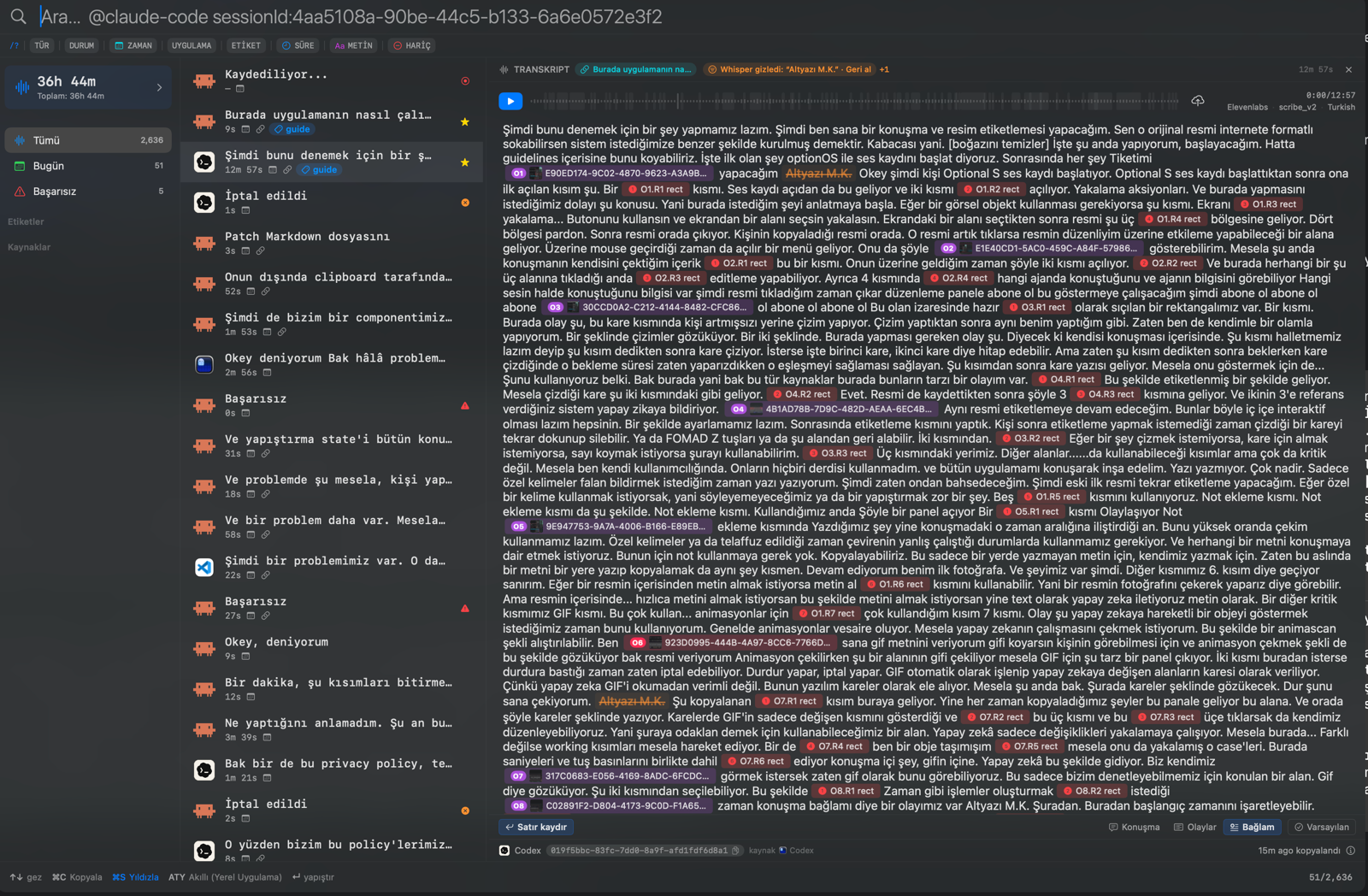
The 12-minute recording that produced this guide, shown in the transcript panel

From ⌥A to close: everything a voice session collects while you talk

This guide was produced with the very method it describes: one 12-minute spoken session, rectangles drawn while talking, and captures taken along the way. The Turkish cards above…

How do I use it?
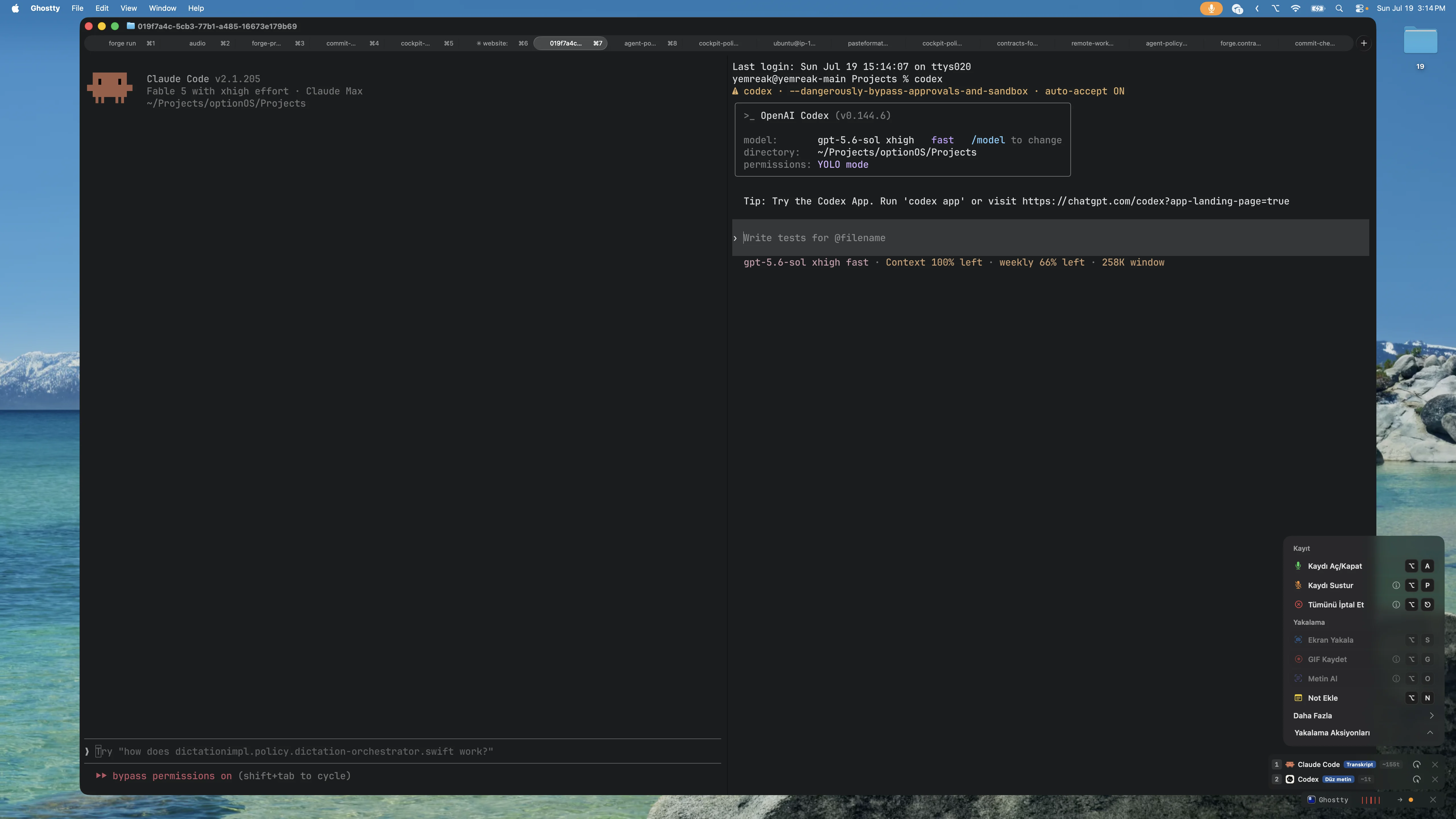
optionOS capture actions menu with the Record On or Off and Add Note rows marked

Speak, mark the areas and turn the same visual into a clickable explanation

This example uses the screenshot and two marked areas sent during the conversation. Hover or click area 1 or 2; the explanation, choices and next target change inside the same…

How do I use it?1 scenes · 2 steps
Capture Text and Add Note appearing beside Screen Capture and Record GIF in the primary optionOS Capture menu

Use Capture Text to copy words on screen; use Add Note to start a spoken note

Your four frequent capture actions now share one list: Screen Capture, Record GIF, Capture Text, and Add Note.

optionOS
The optionOS bottom bar showing a flagged Ghostty delivery target and the Option V paste-to-target message

Flag the field first, then paste back to it even after speaking in another app

Press ⌥⇧V over a writable field to flag it as the delivery target. You can move through other apps while speaking, then press ⌥V to paste the pending dictation into the flagged…

optionOS

Images prepare faster, language issues are fixed, and long conversations feel smoother

This release improves media delivery, Turkish–English text, and long-session performance together.

optionOS
The signal token being suggested as si is typed in optionOS voice-recording search and the results update

Type the start of a word; find the right recording and every transcript match together

Type a beginning such as si, and optionOS suggests a matching search token such as signal. Once selected, matches are highlighted both in the recording list and inside the open…

optionOS
A visual opening in the optionOS Guide and the explanation on the right changing as numbered areas are selected

Select a numbered area; let the visual focus and open its explanation beside it

A single Guide visual now turns the areas marked during a spoken explanation into clickable steps. Each step focuses the right region and opens its explanation beside it, so you…

Website
base-prompt.md showing base namespace anchors

Measure whether documentation lineage reduces duplicate and orphan decisions

Claim: documentation blocks can disappear inside large AI context if they do not carry unique anchors and lineage. Expected effect: documentation writers add not only prose, but…

Where is AI going?

See unshipped work here, then tell us what you want through Report Issue

This is where we say what we are going to build. Shipped things live in What's New; the work we promised but have not shipped yet lives here.

Promise
base-prompt.md showing base namespace anchors

Connect documentation blocks with unique anchors, one authority and lineage

When an AI reads many prompts, policies, skills, guides and notes, it no longer sees one document at a time; it receives a large context forest. A small but important block can…

Where is AI going?
Session paused safety warning after the split Turkish phrase in a Fable 5 session

If Fable 5 pauses for safety, do not repeat the problematic wording verbatim

Three benign phrases or contexts encountered Fable 5's safety-pause surface during normal optionOS development. The goal is not to weaken safety controls. It is to carry harmless…

How do I work?
The optionOS annotation editor showing an image inside the conversation, rectangle labels tied to speech moments and the active rectangle tool

Take a screenshot for something static; record a GIF for motion; label the area to show what you mean

The label does not have to be a component — it can be any region on the screen.

How do I use it?1 scenes · 4 steps

Choose the reader question from the top tab and the content type from tags

Field Guide top tabs are not content types; they are the reader’s big questions. Rules, bets, workflows or features appear as global tags; the tab only decides which big question…

How is it built?
Closed lineage set for a What's New entry

Do not send a visual alone; carry its marks, explanation and source relation together when they exist

A lineage graph does not leave a visible UI piece as a standalone screenshot. The image, any marks that actually appear on it and their meaning, the component/source-map trace and…

How do I work?2 scenes · 6 steps
Apple System Settings, optionOS Settings Shell, Capture Actions and captured media on the same working screen

Give AI not only what you said, but also what you saw and which part you meant

The idea is simple: do not try to describe the code first; show what you see, speak what you want, and hand the context to the agent without losing the thread. optionOS connects…

How do I work?1 scenes · 4 steps
A Cockpit agent card with a colored stable number and User Only and Editable transcript-copy controls

Cockpit cards now have a stable number, a color tag, and two transcript-copy scopes

Cockpit cards now make it easier to find an agent session again and choose exactly which transcript scope should travel with you.

Cockpit
The Cockpit Usage panel showing 5h and 7d usage for active Claude and Codex accounts plus a previously observed Claude account

Sign in to an account once on this Mac; Cockpit keeps its usage beside your other accounts

Switching accounts no longer makes the previous usage view disappear. Cockpit remembers the Claude and Codex accounts observed on this computer and keeps their last-known 5h/7d…

Cockpit
One guide card showing four screen-recording permission steps, the OptionOS app path and the System Settings action

Screen-recording permission now leads to the right Settings page from one card

When screen-recording access is needed, the correct System Settings destination and every required step remain in one guide card.

optionOS
The area below the optionOS recording bar after the separate Smart format card was removed

Stop choosing a paste format; optionOS now selects it for the target app

You no longer need to read a separate format card or choose a mode before pasting.

optionOS
The optionOS bar showing a Claude Code terminal agent, separate voice 1 and voice 2 rows, and the voice editing action

Speech flow and the source of captured content are now visible

optionOS now shows conversation order, the current word during playback and the source of captured content directly. The terminal agent and voice turns remain separate targets,…

optionOS
A Cockpit Mac card showing the title, target, session, model, host, state, file and action data points of an agent session

Read an agent session in its Cockpit card and continue from there

This page shows the agent-card screenshot from What's New as the same image-card lineage, not as a bare image. The caption and the 1–15 indexed legend come from the What's New…

What is in the app?
optionOS Settings panel, target app selector and capture queue on the same Mac screen

v0.5: The system behind speech is now visible

Recording, transcription, capture, paste, storage and agent flows used to run mostly in the background; only the person building the system could see what it was doing. v0.5…

optionOS
The Mac Cockpit toolbar Usage chip and the Usage panel showing Claude/Codex account limits

Cockpit shows usage limits and stable Ghostty cards

The Mac Cockpit grid now shows Codex 5h/7d usage percentages in the Usage chip. Opening it keeps the currently available Claude and Codex subscription account details on one…

Cockpit
optionOS ecosystem with Dictation capture actions, the Clipboard/Pano window and the VS Code Cockpit panel on the same screen

The optionOS ecosystem in one working surface

optionOS now reads less like separate tools and more like members of the same AI work ecosystem: Dictation carries speech and capture, Clipboard/Pano manages visuals and paste…

optionOS
Cockpit live agent session panel

Set up Cockpit in VS Code

optionOS — Cockpit has two surfaces: the Mac app opens on its own; live agent sessions require the VS Code extension over a local bridge.

How do I use it?
A Cockpit Mac card showing the title, target, session, model, host, state, file and action data points of an agent session

Cockpit cards show an agent session as individual data-flow points

A Cockpit card now shows an agent session as separate readable data points instead of only a one-line summary. The title, target, session identity, model, host app, state,…

Cockpit