
Do not send a visual alone; carry its marks, explanation and source relation together when they exist
LINEAGEParent/child/relation lineage is required.EVIDENCE-UIUnderstood through visual evidence.
A lineage graph does not leave a visible UI piece as a standalone screenshot. The image, any marks that actually appear on it and their meaning, the component/source-map trace and the spoken intent all have to be read together.
That is why every card here carries visual evidence, an explanation and flow text between cards. When the visual contains real marks, their explanation stays in the same card; when it does not, no numbered legend is generated. The text between cards matters as much as the image, because it answers “why is this example here, and how does it lead to the next one?”
The core goal is to mark the output instead of describing the code. The human speaks over the UI and marks what they see; the agent uses that marked surface to find the component, the source file and the change to make. Work shifts from “which code should I edit?” to “which observed outcome do we want?”
The first closed set was built for a What's New entry. The important lesson is that the smallest shared unit is not the image. The largest safe shared unit is the image-card lineage: the image and caption always travel together, while a legend travels only when it maps to marks that are actually visible in the image.
This image is not a product screen; it is the contract drawing that explains which atoms a What’s New entry contains and which component can be projected into surfaces such as Guide.
The practical result is simple: if the Guide needs the 15-index Cockpit card from What's New, it must not link only the PNG. It calls the source entry's feature-block and image-card. Caption and the 1–15 index explanations are not written twice, but they still appear in the Guide.
The same pattern works inside documents. When a screenshot is placed into a document, the source-map or component row around it is part of the lineage too. The agent does not only see an image; it sees which component/source hint was selected in that image.
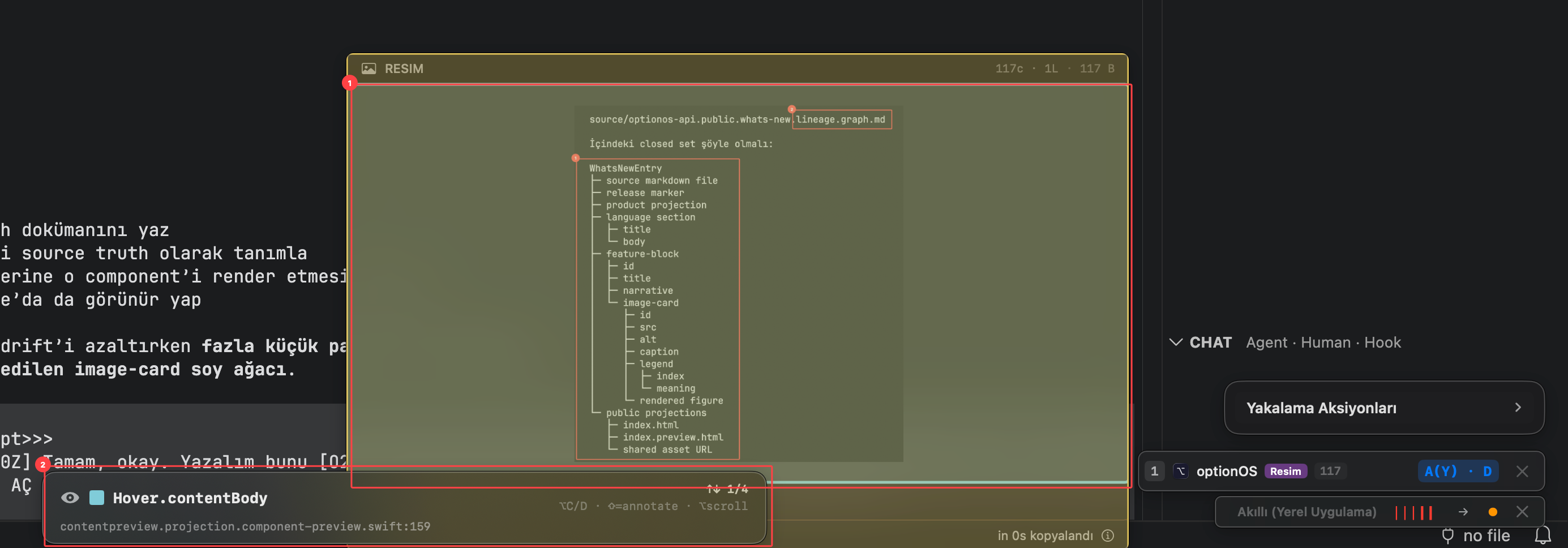
This image shows how a captured screenshot and the source-map/component row below it live in the same evidence packet.
- 1Full captured image — the evidence packet used in the conversation
- 2Selected component/source-map area — the ownership hint on the code side
In this example the document acts as a fast explanation surface. The user drops in the image, draws indexes and says what they are looking at. Because the source-map is visible under the image, the agent answers “which file/component owns this UI piece?” from evidence, not from a guess.
The next example narrows the same operation. The whole screen is no longer the point; the selected node/component row is the point. Most development decisions shrink this way: broad image, selected component, source path.
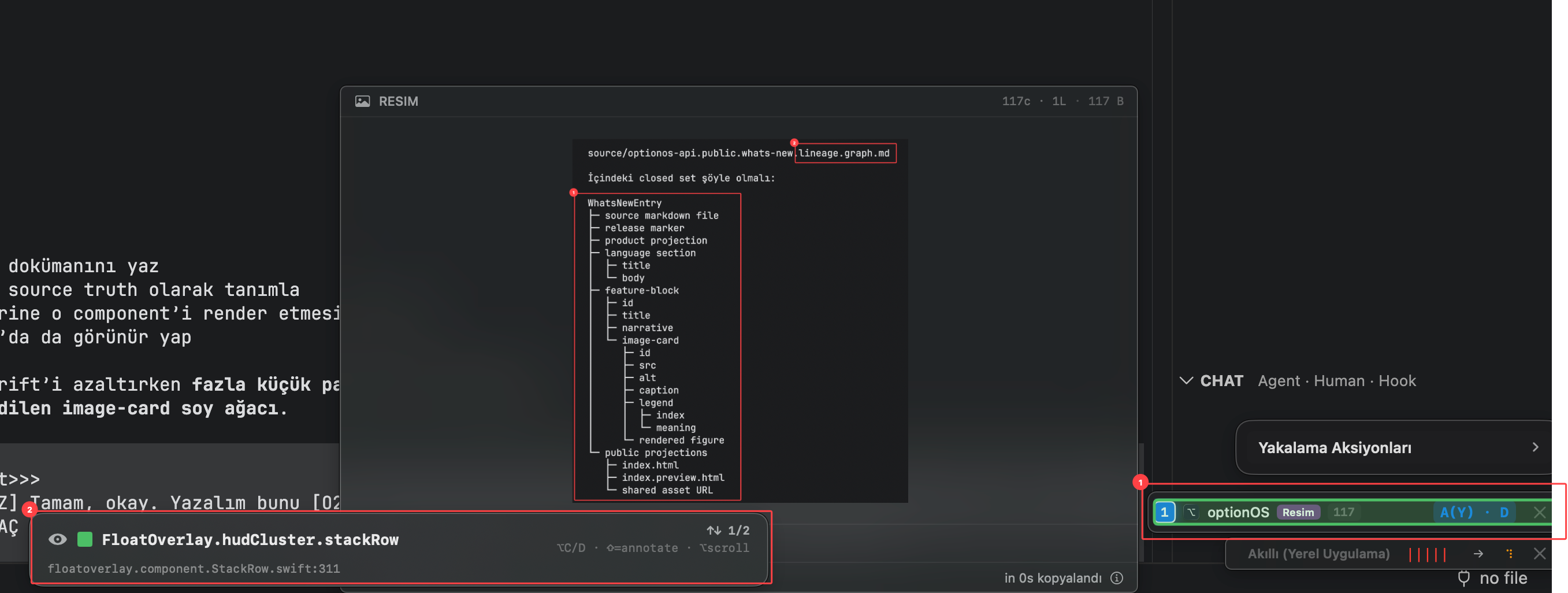
This image shows the narrowing step from a broad screenshot to a specific component row, making the UI piece and source path relation visible.
- 1Component row — the source-map counterpart of the UI piece being discussed
- 2Capture list — where the same evidence is kept in conversation and file context
These two document examples show that lineage is not decoration. It is a work protocol that makes node and edge relations visible: visible surface → selected component → source map → spoken intent → agent action.
The value of that protocol becomes clearer in the full working layout. The product surface, VS Code Cockpit panel, agent terminals, terminal content and Source Control stay visible at the same time. The user does not open the code and explain it; they move between outputs and speak.
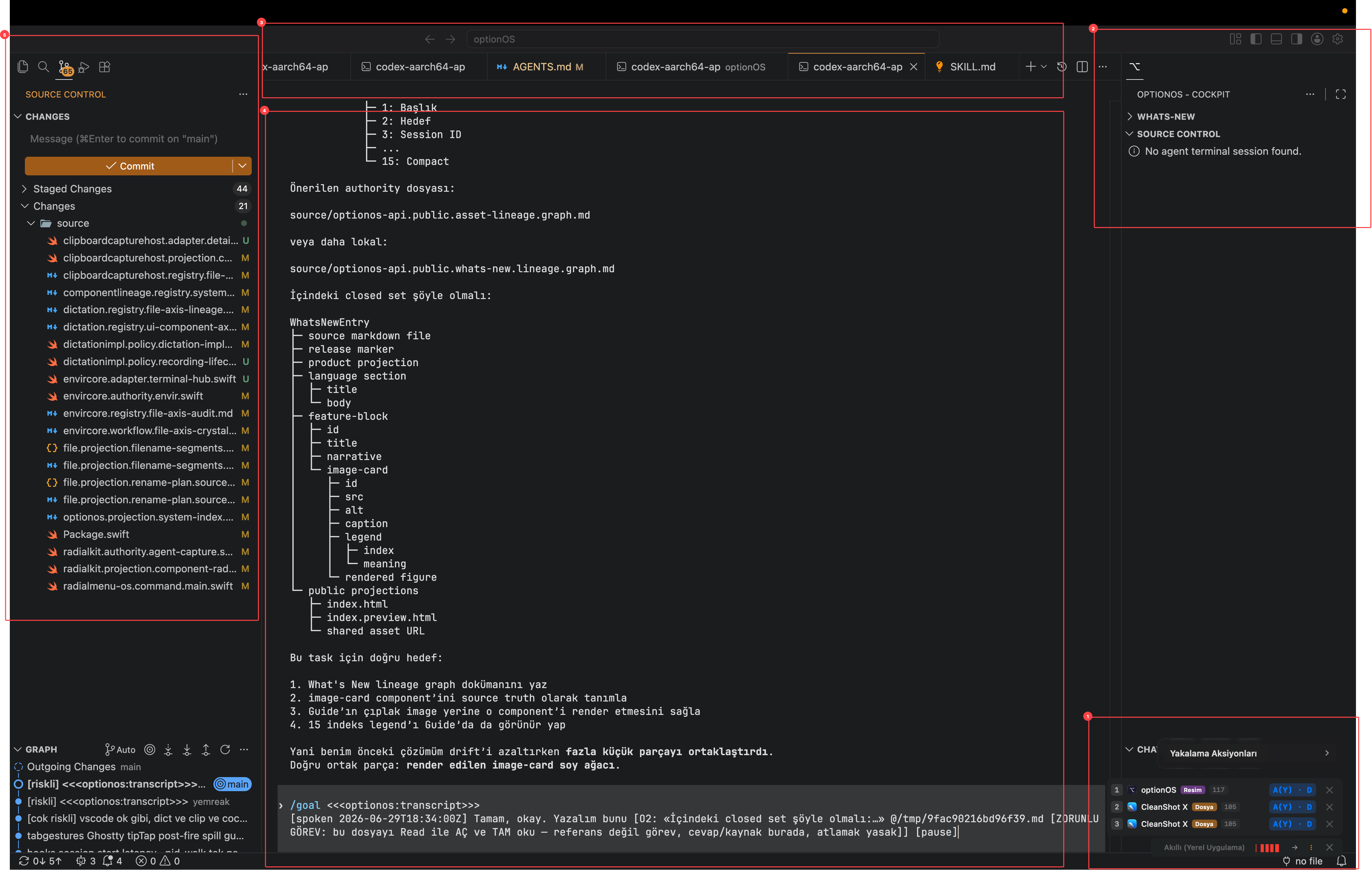
This image is not a single feature screen; it shows the working layout where product surface, Cockpit panel, agent terminals and Source Control stay visible together.
- 1Product surface or component being worked on
- 2The Cockpit panel inside VS Code
- 3Open agent and terminal tabs
- 4Terminal content — the real agent output, not a custom mock UI
- 5Source Control — live view of changed files
The glue layer in this layout is voice. The user records while working on their own app, marks the observed result, and the agent does the real work in the terminal. Source Control stays as a judge-like surface: which files changed, what is staged, and what is still unstaged.
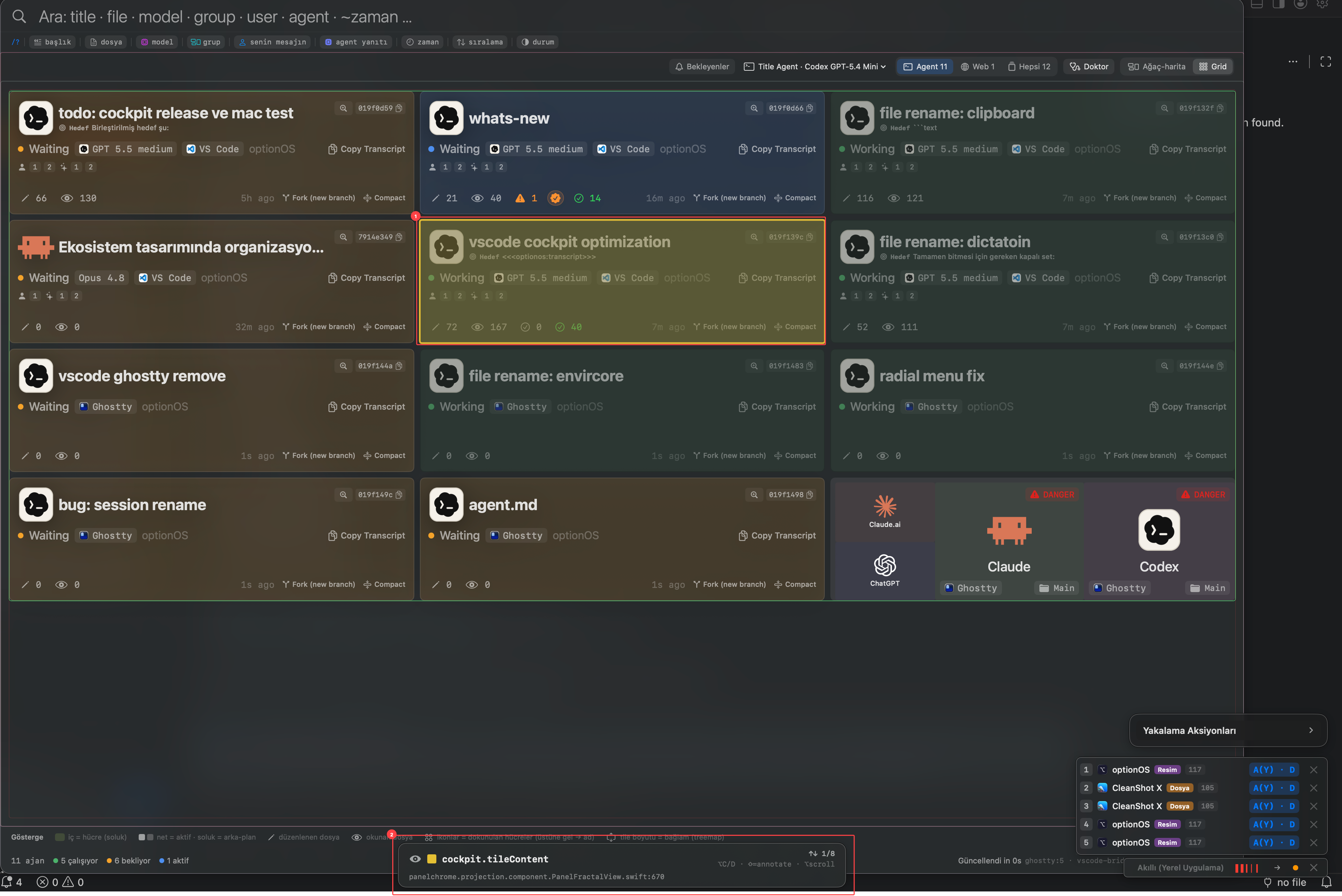
Once terminals and agents multiply, a higher-level control surface is needed. Cockpit provides that surface. It turns agent sessions into cards: waiting state, running state, host app, model and quick actions are all visible in one grid.
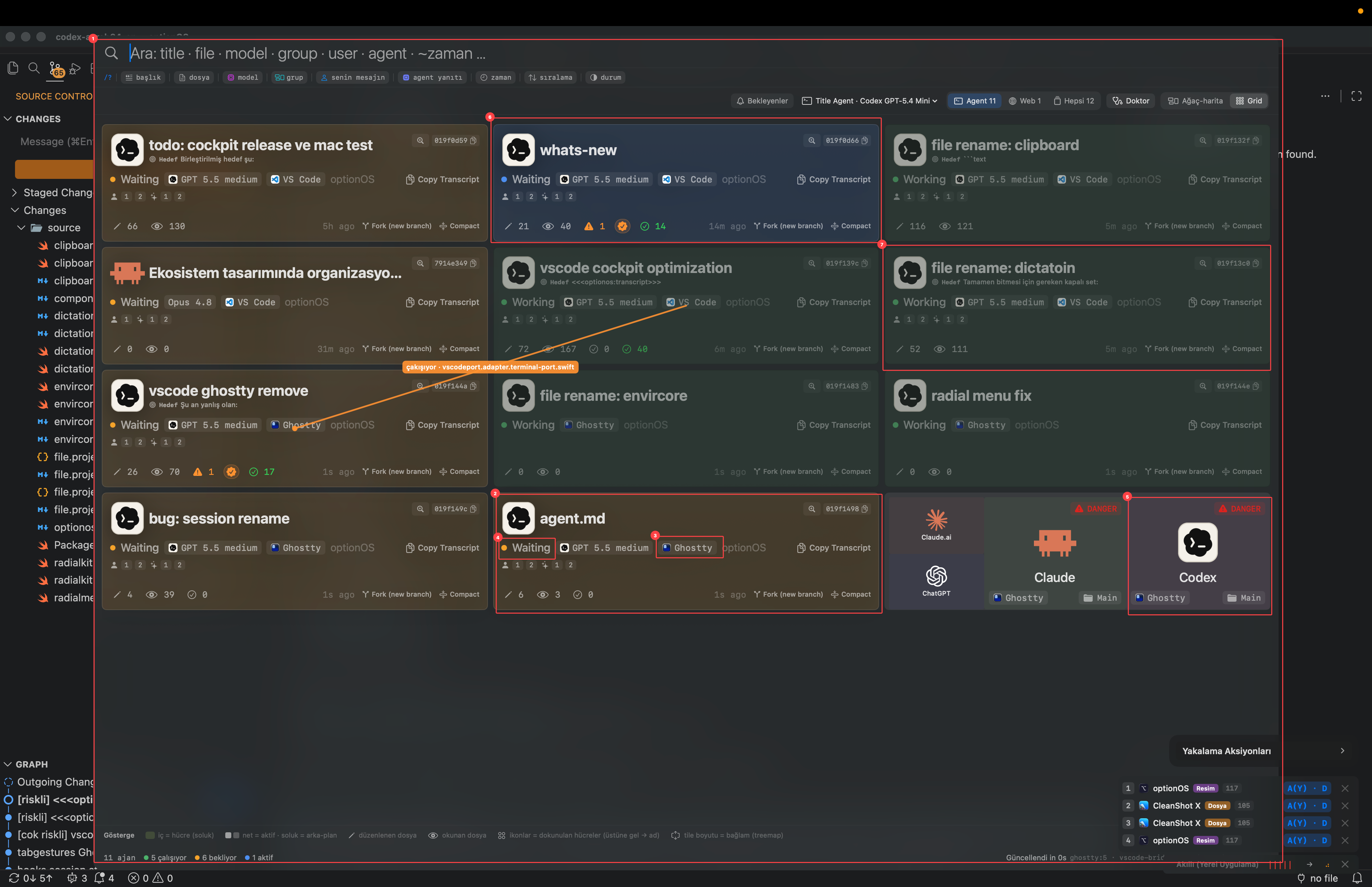
This image shows the Cockpit grid used to manage agent sessions; waiting cards require action, while running cards are monitoring signals.
- 1Cockpit grid — the main control surface for agent sessions
- 2Selected Ghostty agent card
- 3Host label — shows whether the agent runs in Ghostty or VS Code
- 4Waiting state — an agent waiting for human input
- 5Custom agent cards — quick-launch Claude/Codex surfaces
- 6Active/focused agent card
- 7Running cards — dimmed so they can be monitored without taking priority
At this layer the goal is not to read every agent. The goal is to find the agent that changes the next human decision. A waiting card asks for action; running cards are monitoring signals. Fast, controllable agents such as Codex therefore become quick-launch cards.
The same relation idea also applies while selecting components. When the inspector is open, the UI piece is selected, the source path becomes visible, and the spoken mark joins the same family.
This image shows an Inspector-selected UI component matched with its source path / lineage trace.
- 1Selected component area — the UI piece to work on
- 2Source path / lineage title — the ownership trace on the code side
This removes the need to say “open this Swift file.” The user opens the inspector, selects the component, marks it and speaks. The agent follows the bond between selected component and source path.
The last layer is the capture workflow. When Capture Actions, Inspector, captured images/files and the smart local-app bar are visible together, even the indexes can be produced by voice. Marking is no longer a separate documentation chore; it becomes part of the work loop.
This image shows Capture Actions, Inspector and conversation attachments collected into one context packet.
The big picture: every image carries its own lineage; image + explanation, plus the legend for any marks actually visible in the image, form an image-card family; the text between image-card families is workflow lineage. This is why the document is not an image gallery. The spoken glue layer connects the images into one working method.