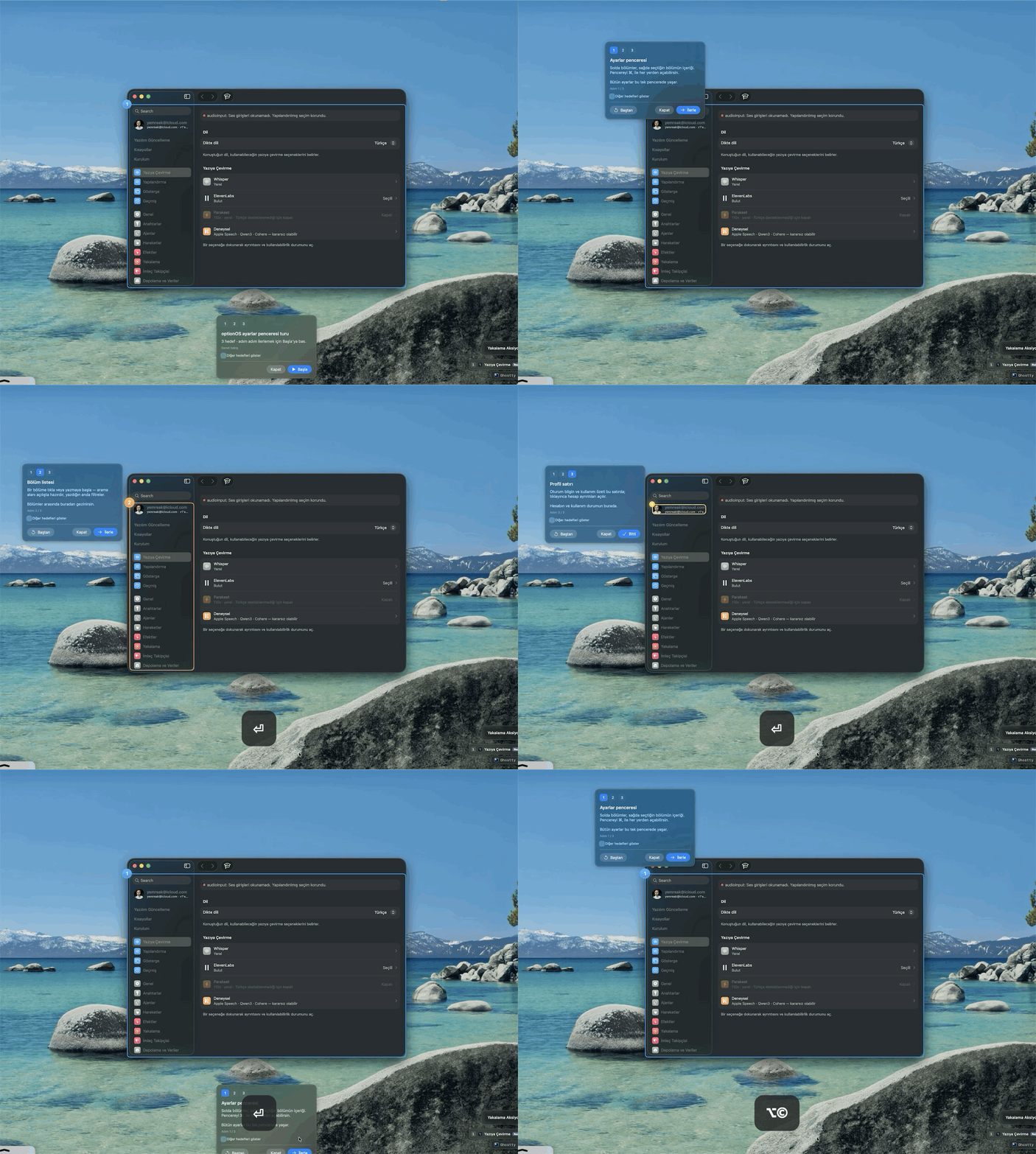
Open the Settings tutorial from the graduation-cap button and move with the arrow keys or Enter
The graduation cap button in the optionOS Settings toolbar now opens the Settings tour. Its panel shows all three targets; after selecting Start , move between steps with ← , → , or Enter .
The graduation-cap button in the optionOS Settings toolbar now opens the Settings tour. Its panel shows all three targets; after selecting Start, move between steps with ←, →, or Enter.
Open the tour panel from the graduation-cap button
Select 1 to inspect the graduation-cap button in the toolbar, then select 2 to inspect the tour panel it opens. Each number focuses the relevant area and opens its explanation beside it.
Follow the tour steps from the keyboard
After you select Start, the explanation card moves to the next Settings target. Continue through the tour with ←, →, or Enter without returning to the pointer.