 optionOS
optionOS Guide
How to use it, how it works and what we promised — open the right guide and follow the flow.
There are no active promises outside a release right now
Experimental features and roadmap ideas are not promises. An outcome becomes a promise only when it is explicitly included in a specific release's closed contract and has a…
How does an AI agent find the right rule without reading all of them?
Giving an agent every rule on every task fills its context.
When does an idea from a conversation become a permanent rule?
`text Raw explanation → correct reality errors → match against existing rules → find the measured gap → extend the correct existing rule → add ground + falsifier `

I run an autonomous agent with one prompt, rules, and context recovery
This flow shows, on the original screens, how one prompt freezes the target, how semantic deltas and a closed file scope make the work auditable, and how the target and rules…

I have Rules review a Forge plan and send it back through Cockpit
Let me walk you through the way I work; we are doing this as a guide. First of all, I have an agent: an agent I call the Forge agent, and it presents a report to me. Here it has…

How my agents stay on track across context changes: anchor, stepper and conversation-cap
A goal alone is not what keeps an agent on target for twelve hours. My optionOS harness preserves three relationships together:
Choose the reader question from the top tab and the content type from tags
Field Guide top tabs are not content types; they are the reader’s big questions. Rules, bets, workflows or features appear as global tags; the tab only decides which big question…

Turn on Cockpit — Ghostty is automatic, VS Code is optional
Cockpit is a feature of the optionOS Mac app; you turn it on in settings. Claude Code and Codex sessions running in the Ghostty terminal are captured with no extra setup — the VS…
Frequently asked questions
The most common questions about optionOS: working with agents, offline use, privacy and pricing. Every answer describes today's behavior; when behavior changes, this page changes…
optionOS vs Wispr Flow
Wispr Flow is a dictation app: in its own words, "Don't type, just speak" — it turns your speech into clean, edited text in any app, and it does that well. Its output is text.
optionOS vs superwhisper
superwhisper is a dictation app: in its own words, "Just speak. Write faster." — it turns your speech into polished, formatted text and works offline. Its output is text.
Best voice input for Claude Code: how to choose
If you want to give Claude Code or Codex work by voice, there are two classes of tools. The first is dictation apps (like Wispr Flow or superwhisper): they turn your speech into…

I produce everything by speaking — these pages included
I produce this site without typing a single line. I record my own voice conversations, tag the useful ones in the panel, then have agents produce from those conversations. The…
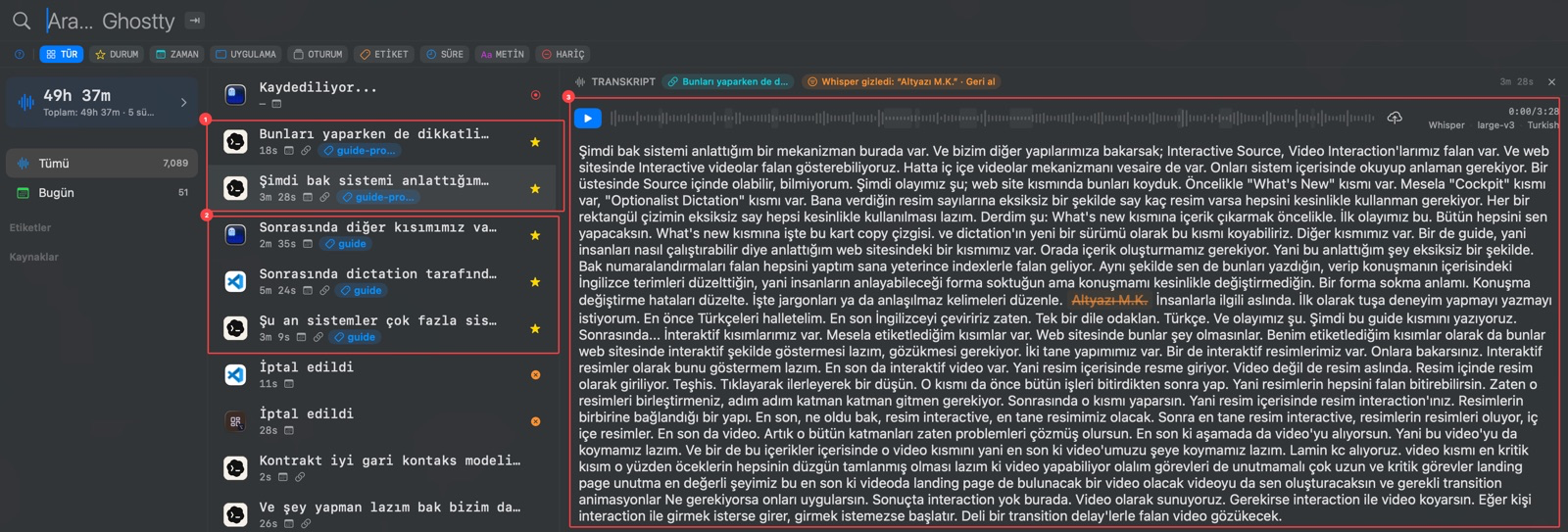
How I work: I speak instead of typing and mark ambiguity on the visual
The content on this page did not begin as a line-by-line written prompt. I made five voice recordings, captured screens at the important moments, and marked 63 regions while…
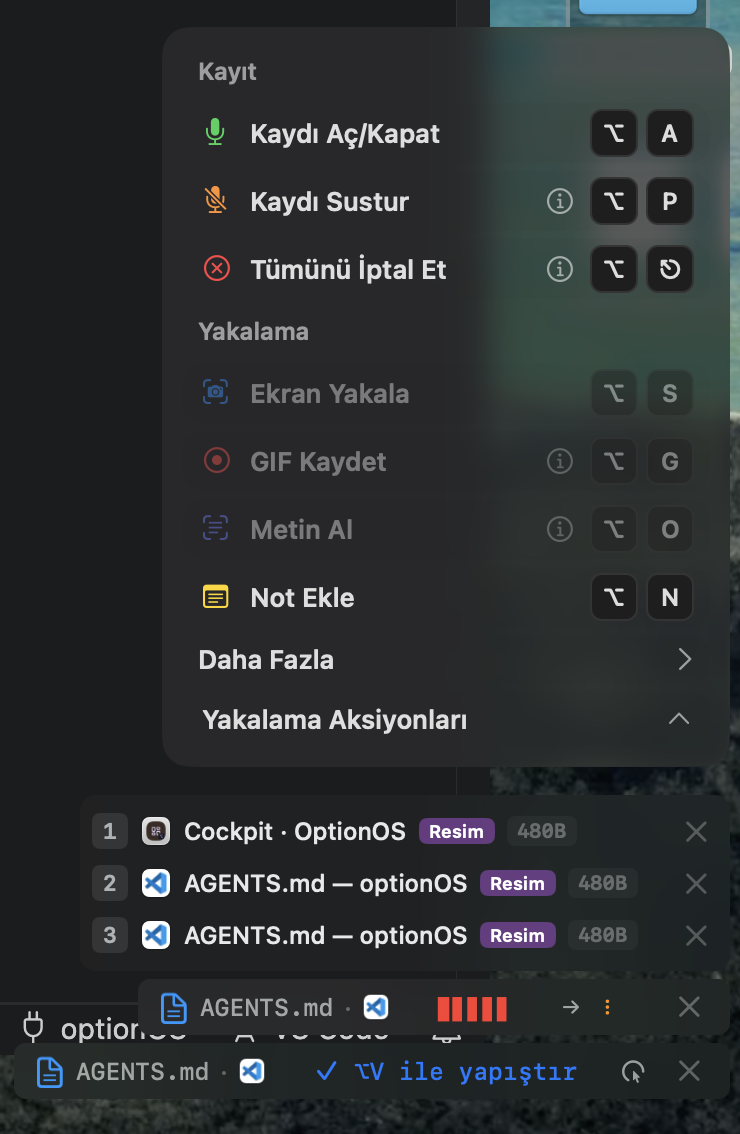
Use speech, visuals, and marked regions as one task context
1 — Start recording and speak naturally. Do not try to make the first sentence perfect. The live waveform shows that audio is being received, and the small progress indicator…

The voice task flow end to end: speak, mark, merge, hand to the agent
Every screen relates to the others; this page merges them into one structure. The flow below is not separate images: it is a single journey that tells what a person does from…

Grow while awake, strengthen the system while asleep: my agentic work loop
I want to show how I actually work right now. This is not an abstract “I work with AI” story. It is the construction site in front of me at that exact moment: how long the agents…

This is how I work with agents: lineage trees, rules and building by talking
I want to show my own way of working. Everything on this page came out of roughly thirty minutes of live talking: I spoke while looking at my screen, copied and marked what I saw…

From ⌥A to close: everything a voice session collects while you talk
This guide was produced with the very method it describes: one 12-minute spoken session, rectangles drawn while talking, and captures taken along the way. Every visual below is…
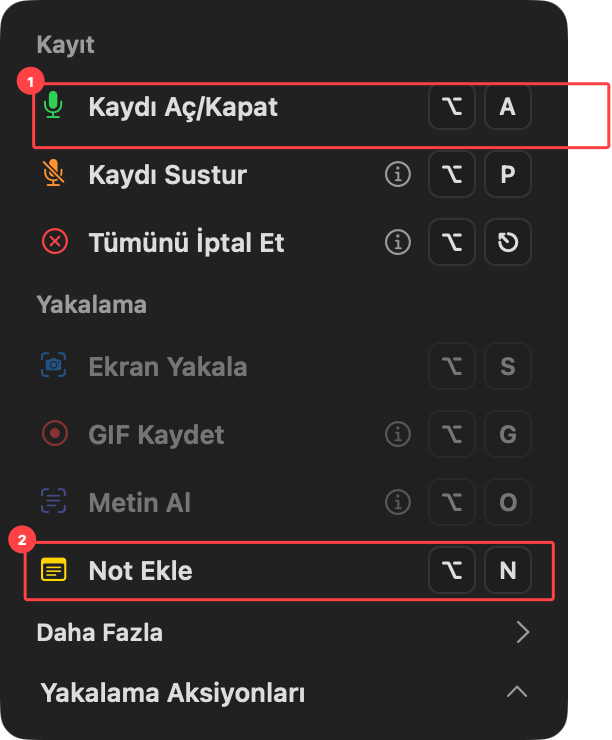
Speak, mark the areas and turn the same visual into a clickable explanation
This example uses the screenshot and two marked areas sent during the conversation. Hover or click area 1 or 2; the explanation, choices and next target change inside the same…

Do not send a visual alone; carry its marks, explanation and source relation together when they exist
A lineage graph does not leave a visible UI piece as a standalone screenshot. The image, any marks that actually appear on it and their meaning, the component/source-map trace and…

Give AI not only what you said, but also what you saw and which part you meant
The idea is simple: do not try to describe the code first; show what you see, speak what you want, and hand the context to the agent without losing the thread. optionOS connects…

Measure whether documentation lineage reduces duplicate and orphan decisions
Claim: documentation blocks can disappear inside large AI context if they do not carry unique anchors and lineage. Expected effect: documentation writers add not only prose, but…
Connect documentation blocks with unique anchors, one authority and lineage
When an AI reads many prompts, policies, skills, guides and notes, it no longer sees one document at a time; it receives a large context forest. A small but important block can…

If Fable 5 pauses for safety, do not repeat the problematic wording verbatim
Three benign phrases or contexts encountered Fable 5's safety-pause surface during normal optionOS development. The goal is not to weaken safety controls. It is to carry harmless…
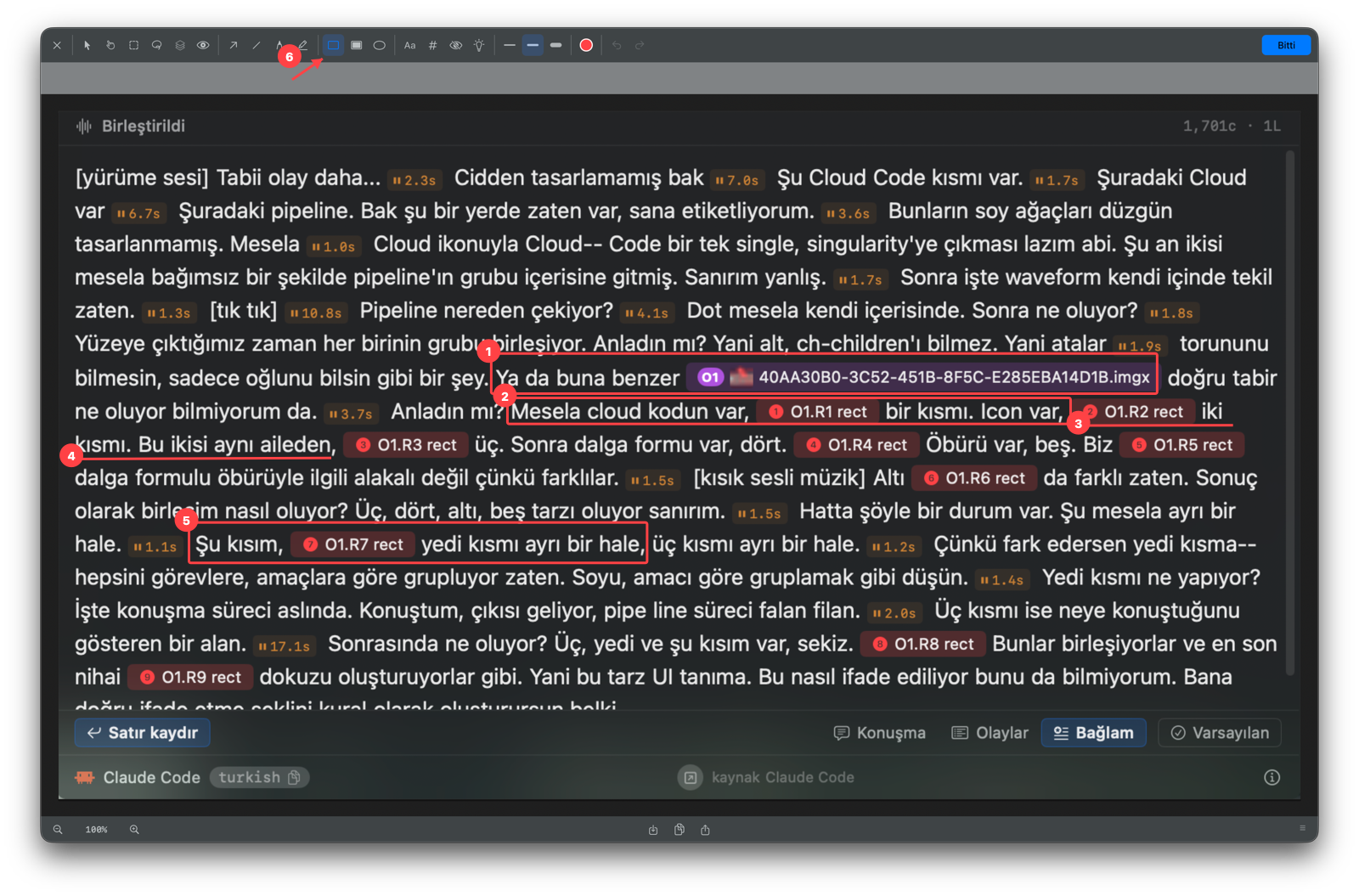
Take a screenshot for something static; record the screen for motion; label the area to show what you mean
The label does not have to be a component — it can be any region on the screen.
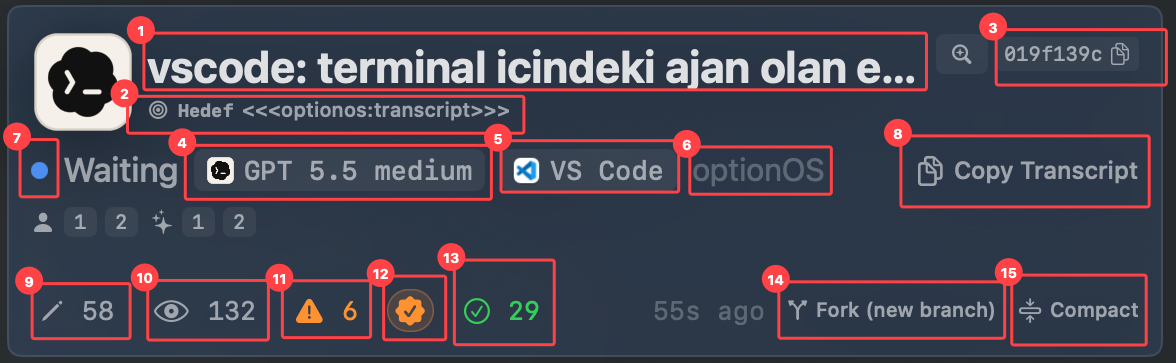
Read an agent session in its Cockpit card and continue from there
This page shows the agent-card screenshot from What's New as the same image-card lineage, not as a bare image. The caption and the 1–15 indexed legend come from the What's New…