 OptionOS
 Clipboard Manager: Real Life Scenarios
What do you expect from a clipboard manager? Copy, paste. Simple.
But real life isn’t simple. Here are the scenarios I face daily and how I solve them with optionOS.
Scenario 1: Where Was That Thing I Copied from Chrome?
10 minutes ago I copied a URL in Chrome. A bunch of stuff happened in between. I need to find that URL.
Normal clipboard manager: Scroll, scroll, scroll…
optionOS: I type @chrome.
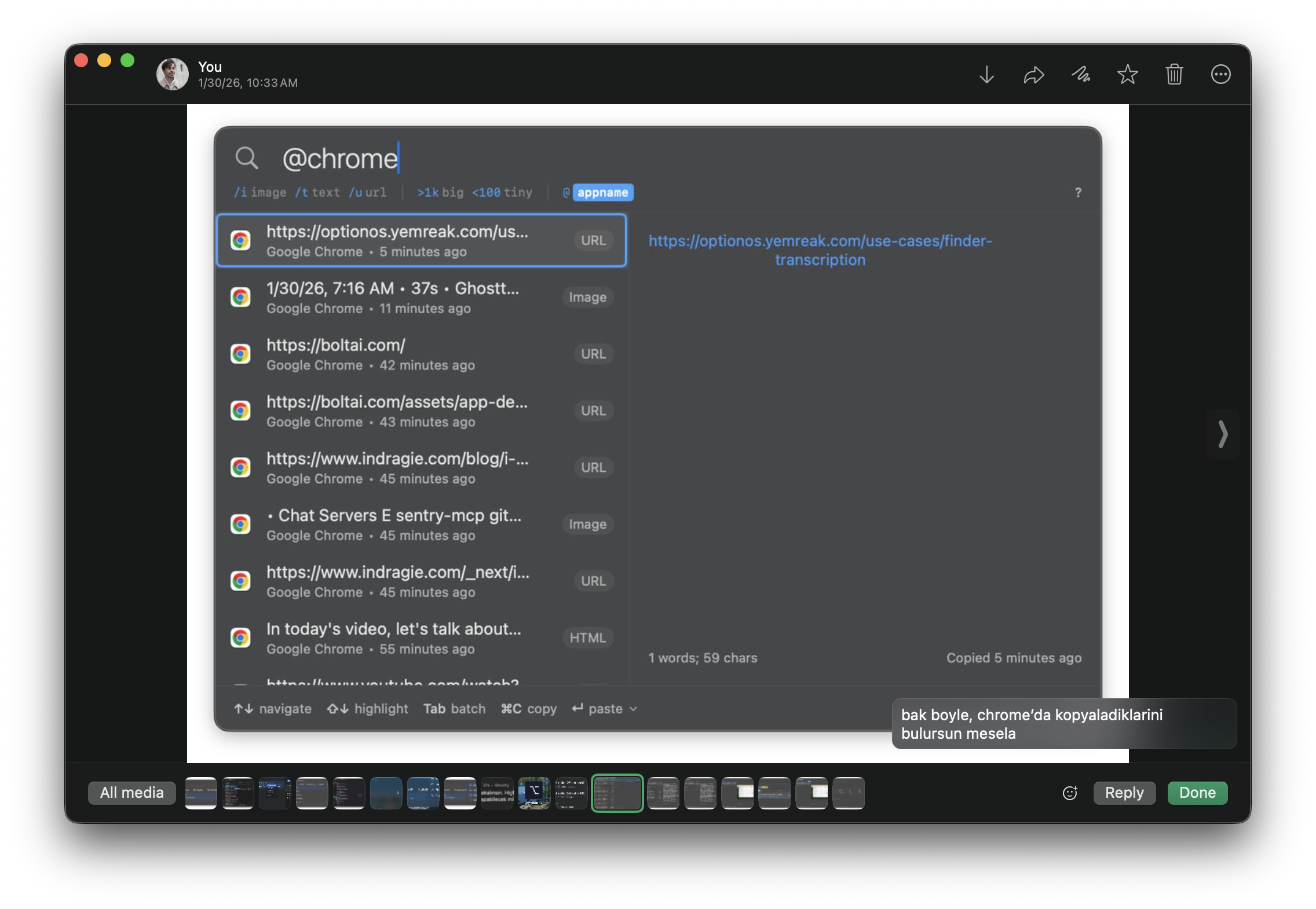
Only things I copied from Chrome are listed. URL, image, text - all of them.
Scenario 2: I Copied Something Really Long, What Was It?
I copied a long text from somewhere. YouTube transcript, blog post, code snippet… Which one was it?
I type >10000. Content longer than 10,000 characters shows up.
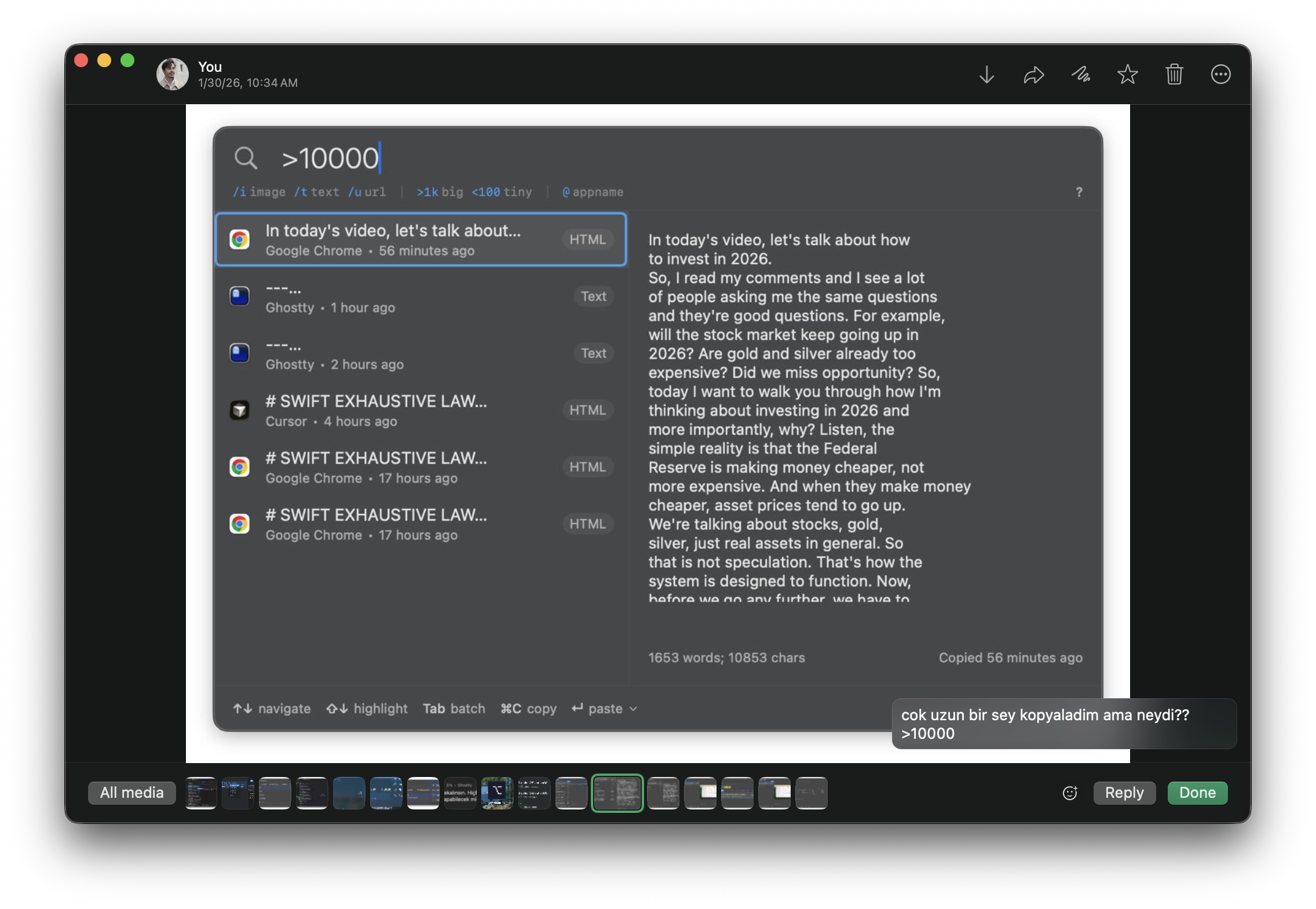
There’s a preview on the right. I can see the beginning of the content. “In today’s video, let’s talk about how to invest in 2026…” — ok that was the YouTube transcript.
Scenario 3: Long Text Containing “when”
That long text had the word “when” in it. But which one?
I type >10000 when.
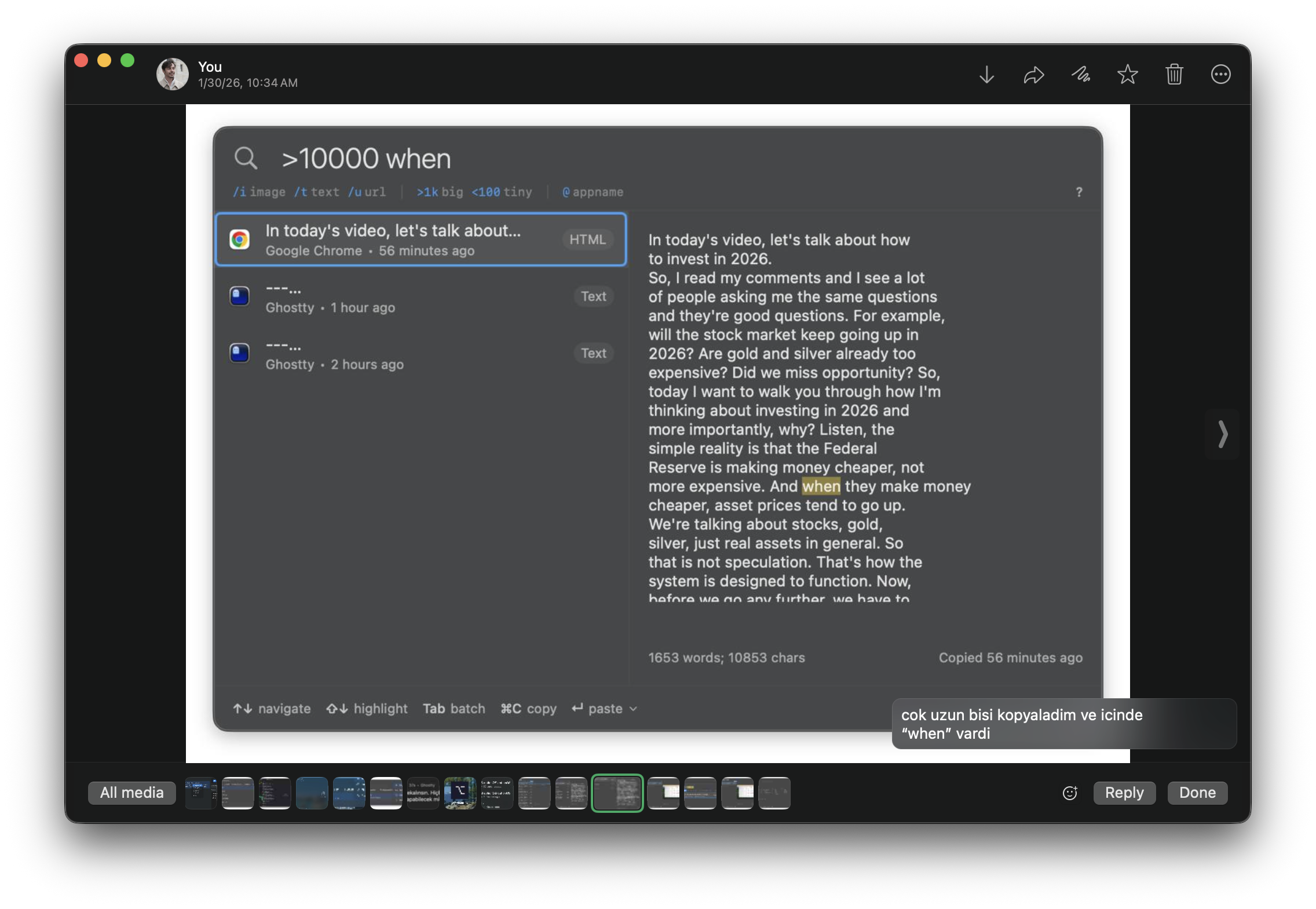
“when” is highlighted in the preview. Exactly what I was looking for.
Scenario 4: I Copied an Image, There Was Code in It
I copied a screenshot from Chrome. There was code with the word “value” in it.
I type /i value. /i filters only images. “value” searches inside the image via OCR.
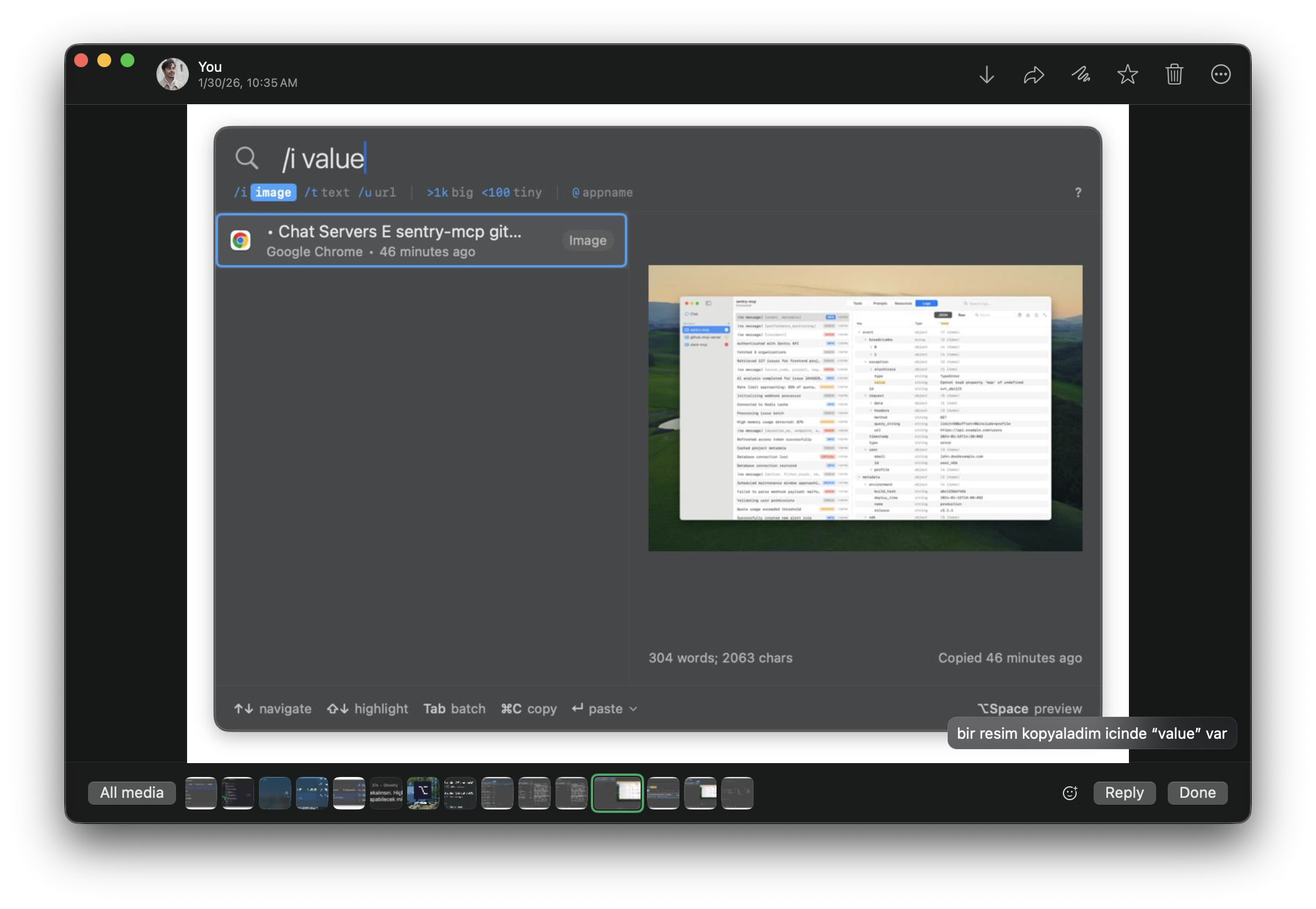
It finds the text inside the image.
Scenario 5: I Want to See the Image Up Close
I want to take a closer look at the image I found.
I press ⌥ Space (Option + Space).
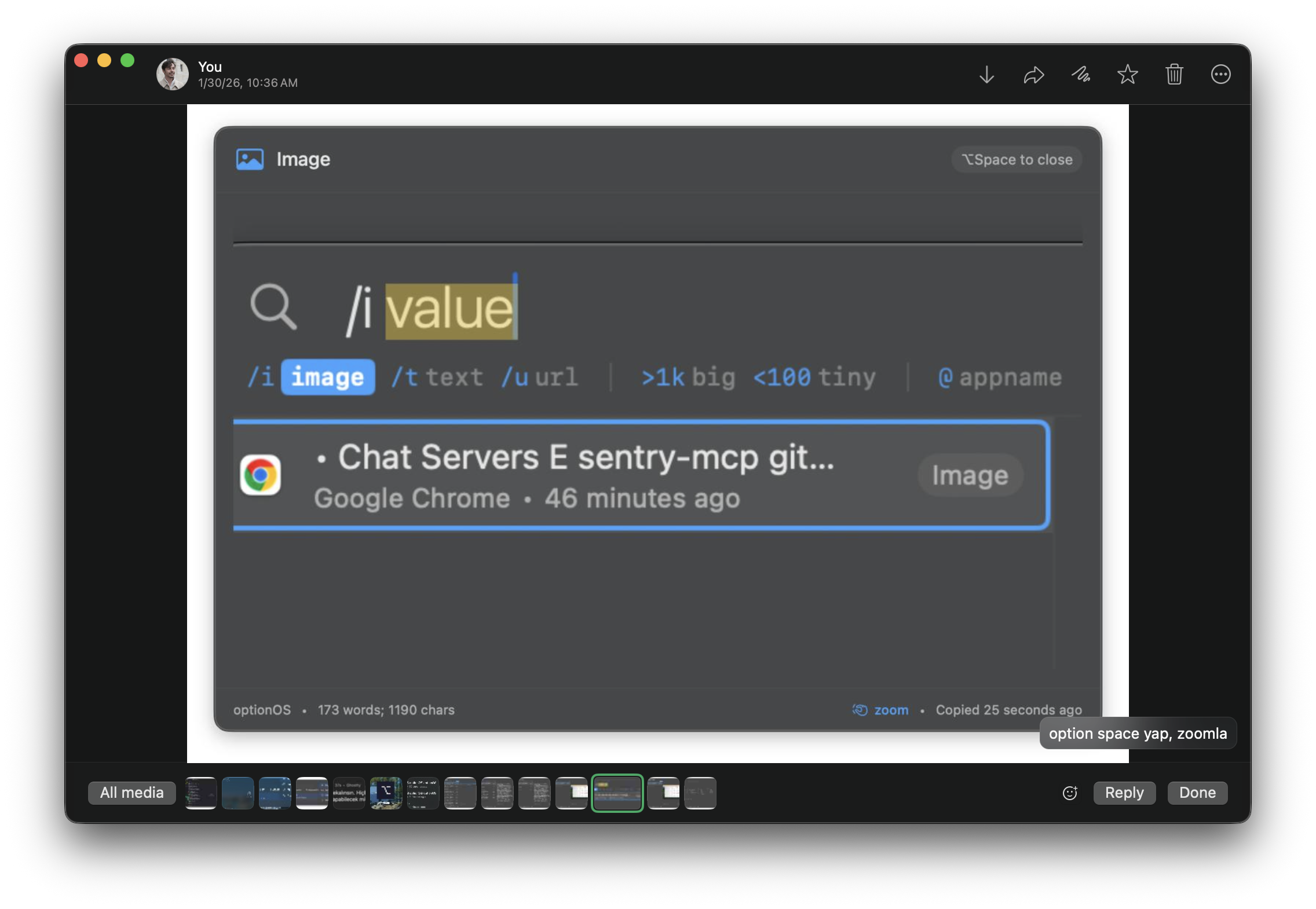
A full size preview opens. I can see the details.
Scenario 6: An Image from Chrome Containing MCP
Specific scenario: I’m looking for an image copied from Chrome that has “mcp” written in it.
I type @chrome /i mcp.
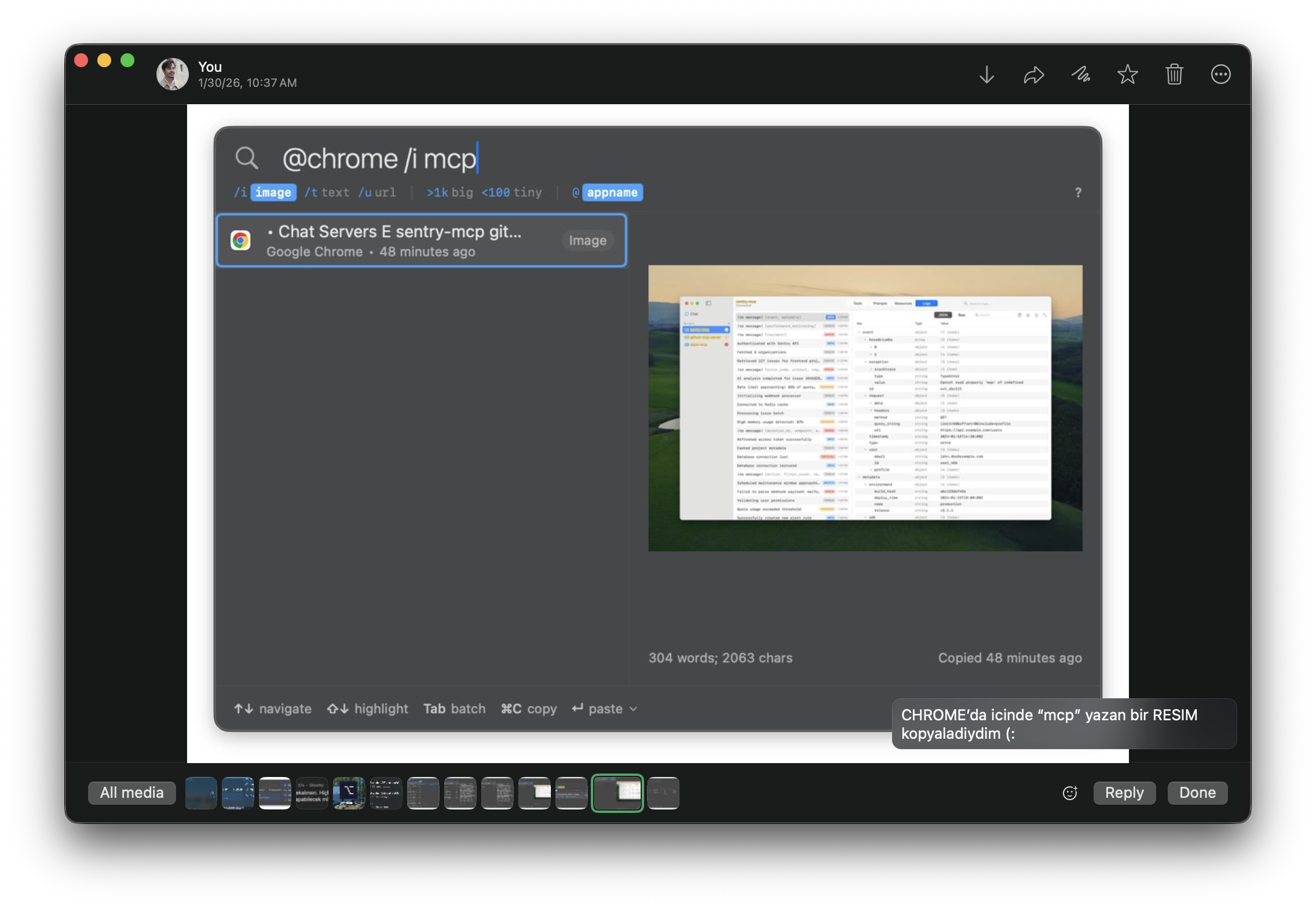
I combined three filters: app + type + keyword.
All Filters: Help Menu
Hard to remember all the filters. Type /? and the cheatsheet opens:
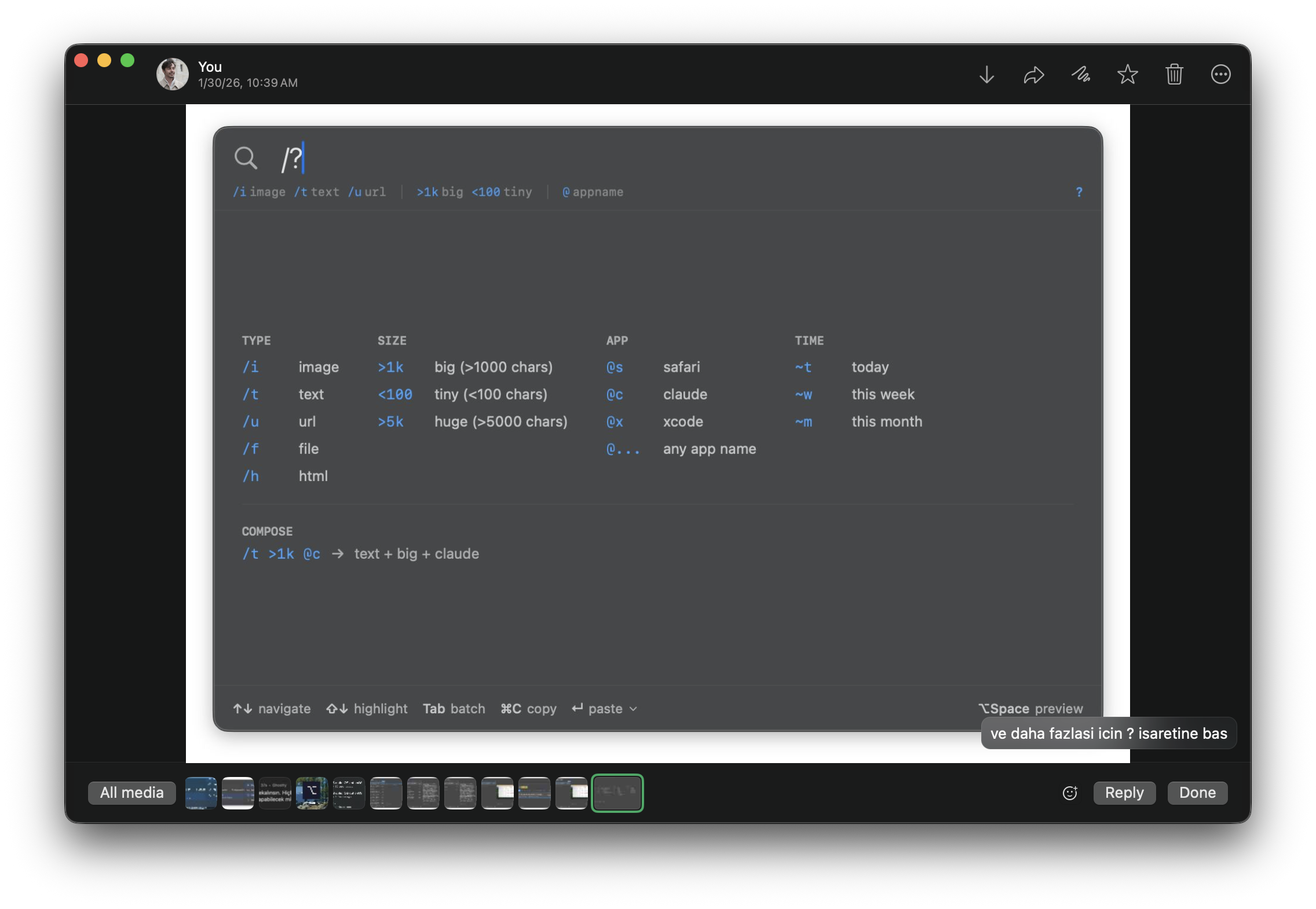
| Command | What It Does |
|---|---|
/i | Images only |
/t | Text only |
/u | URLs only |
>1k | 1000+ characters |
<100 | Less than 100 characters |
@chrome | Copied from Chrome |
~t | Copied today |
~w | Copied this week |
And you can combine them however you want.
Bonus: Did Something Come to Mind While Talking?
In optionOS you write by voice. You talk, it transcribes. But while talking, something else came to mind.
You can open a second recording. The first transcription continues in the background.
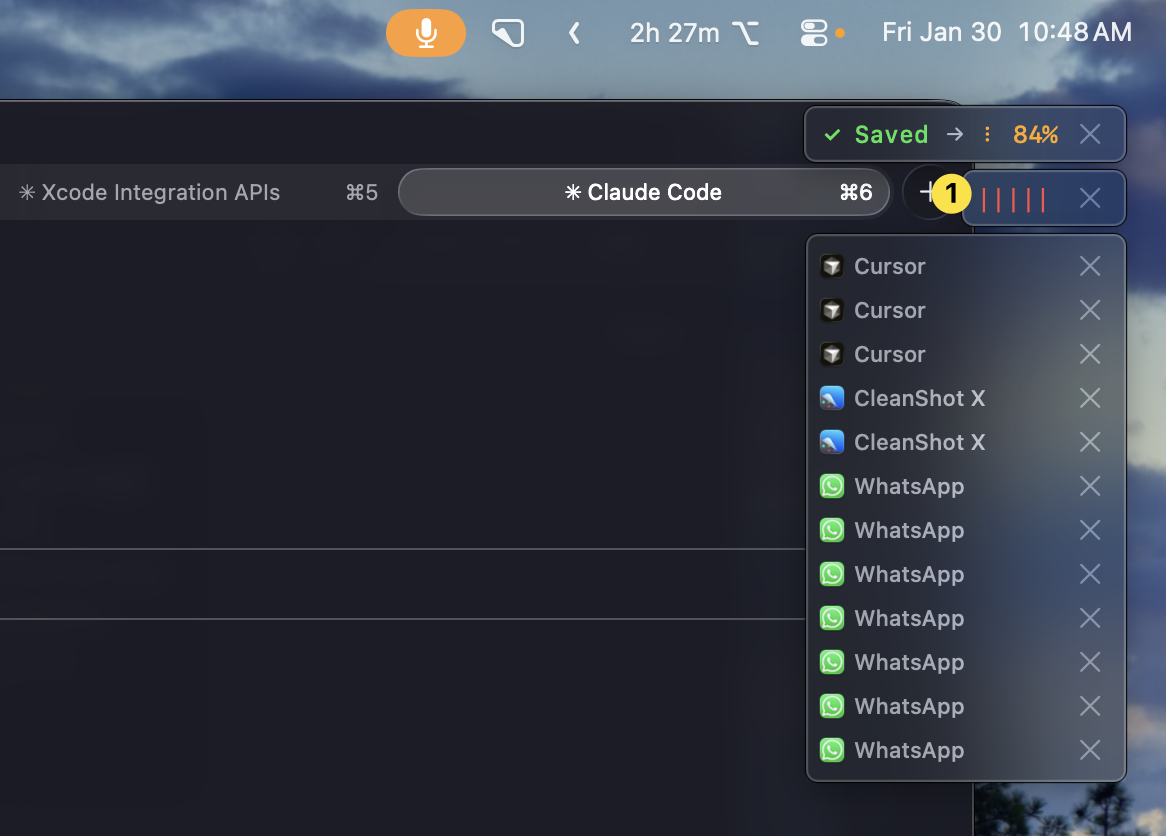
First recording: 84% transcribed, still going. Second recording: just started.
This blog was also made by voice.