 OptionOS
 File Transcription
Want to transcribe an audio/video file?
Scene
You have a meeting recording. An audio file. You don’t remember what was discussed. You don’t have time to listen.
Difference
Right-click the file in Finder → Transcribe with Whisper.
2 minutes. Text is ready. Saved as .txt in the same folder.
Setup
1. Open System Settings
System Preferences → Keyboard → Keyboard Shortcuts
2. Select Services
Click Services in the left menu.
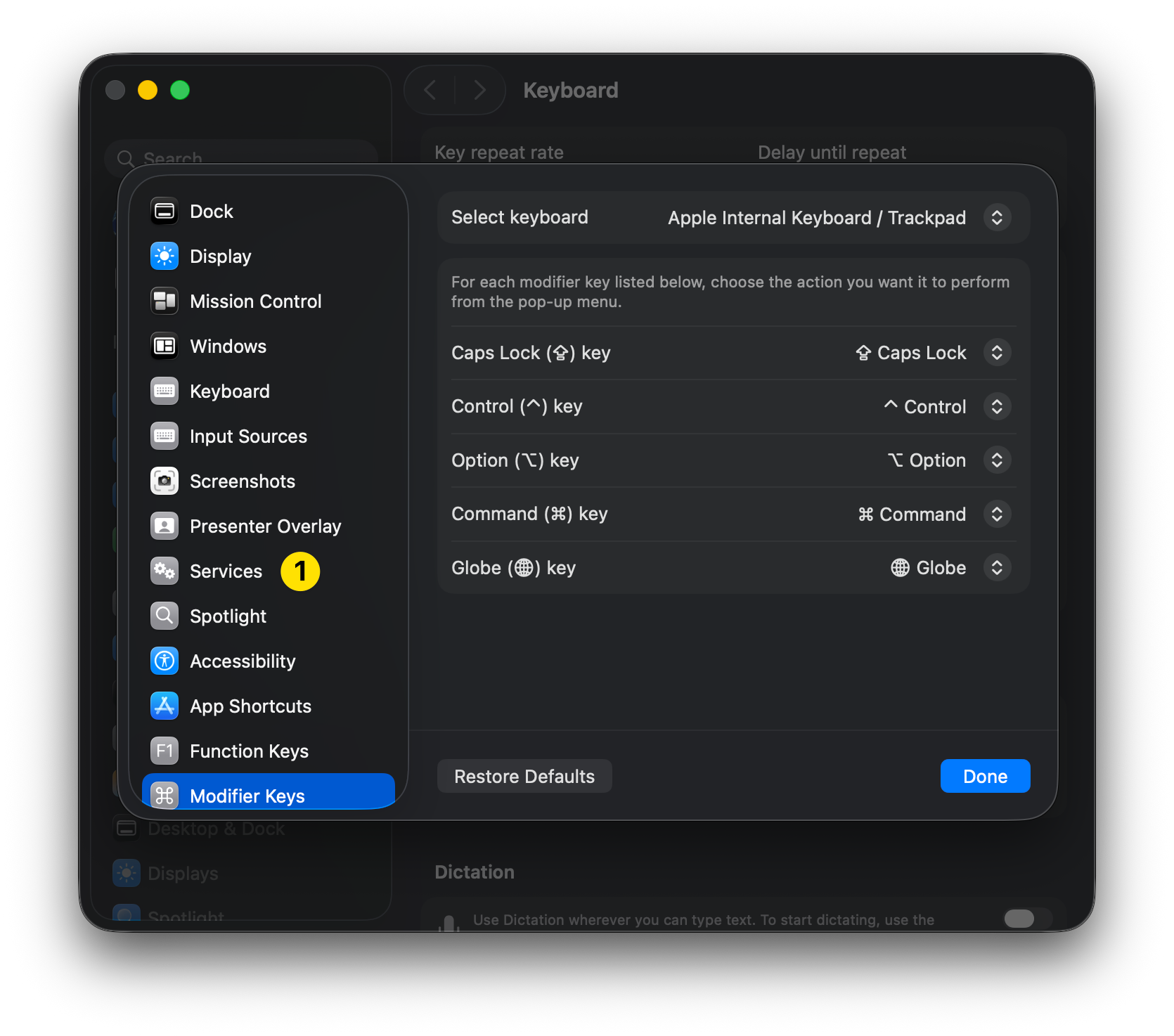
Keyboard Shortcuts → Services
3. Enable Transcribe
Expand the Files and Folders section.
Check the Transcribe with Whisper checkbox.
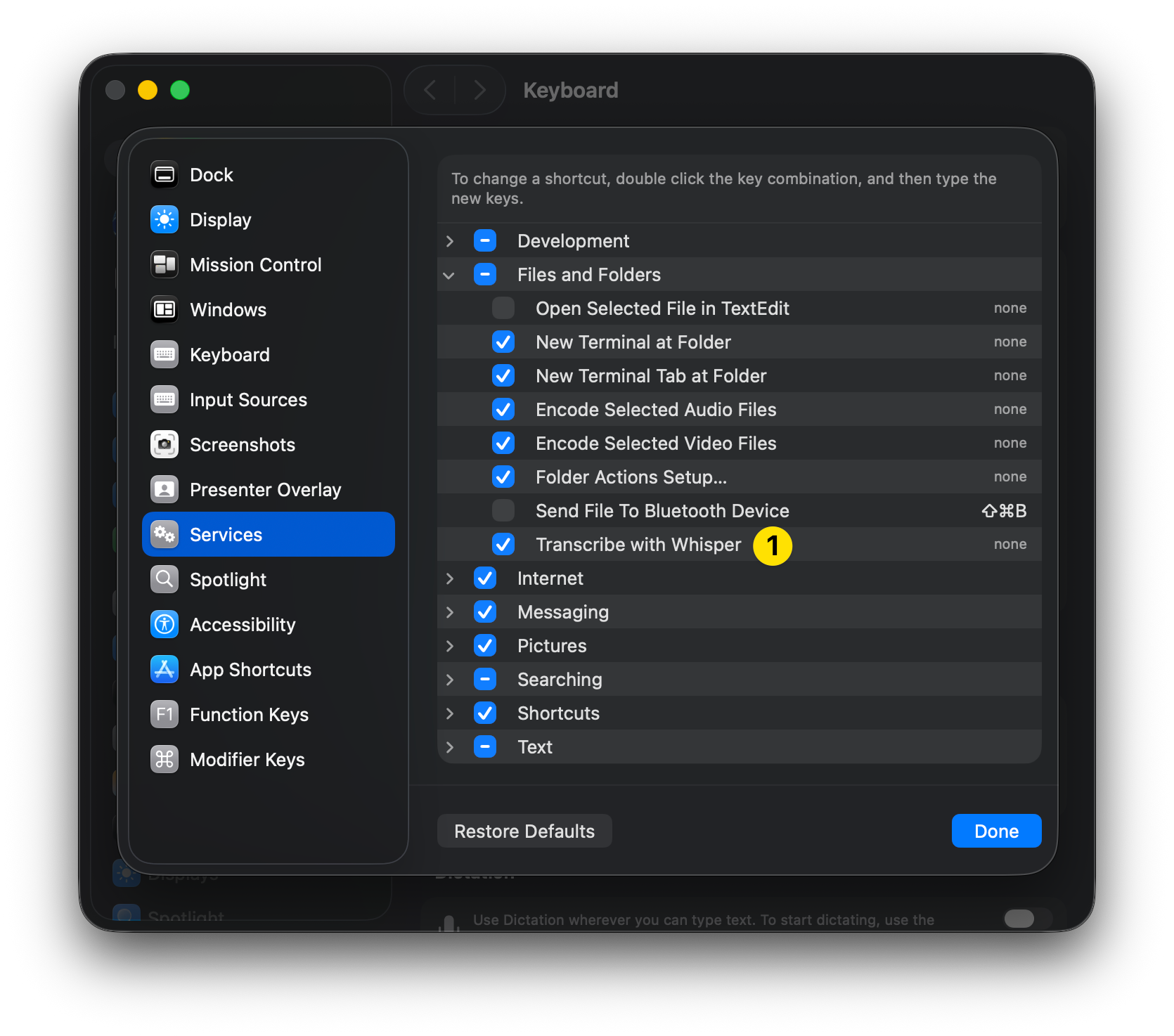
Transcribe with Whisper option
Usage
- Go to the audio/video file in Finder
- Right-click (or two-finger tap)
- Quick Actions → Transcribe with Whisper
- Wait (depends on file size)
- A
.txtfile is created in the same folder
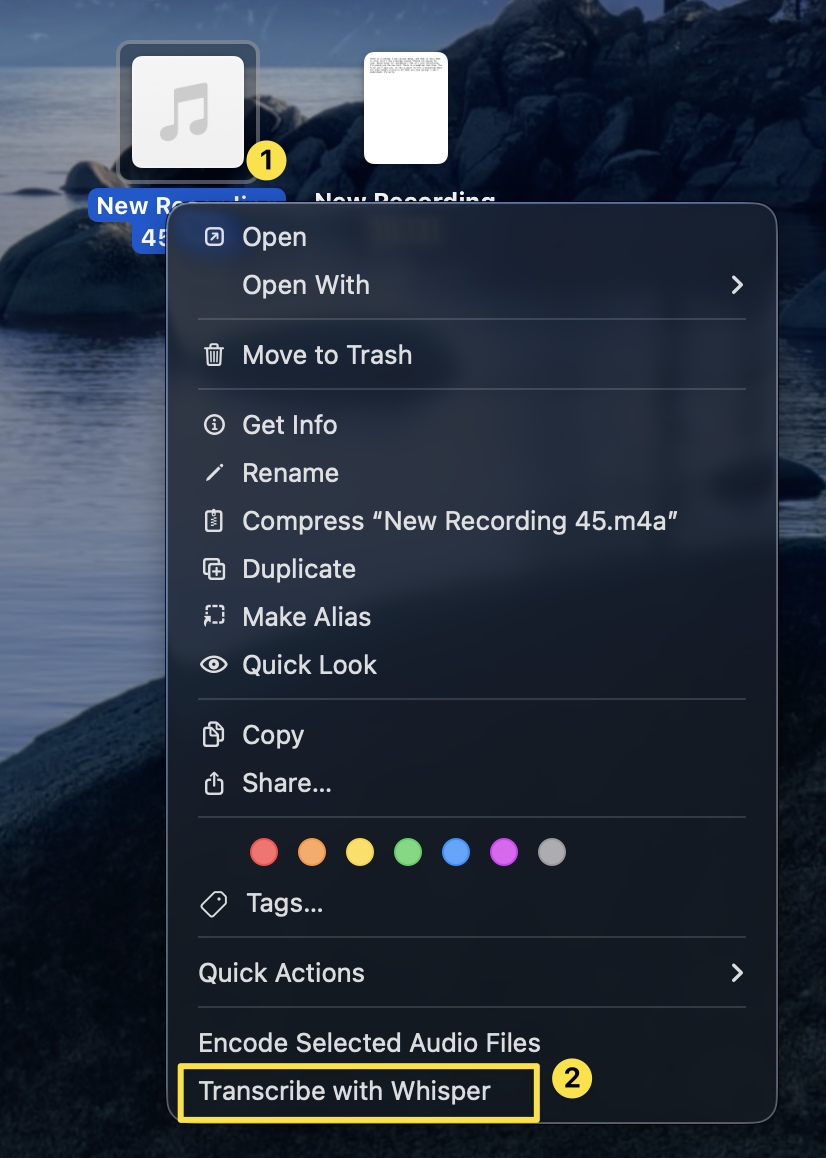
Transcribe option in Finder context menu
Supported Formats
| Type | Formats |
|---|---|
| Audio | .mp3, .m4a, .wav, .aac, .flac |
| Video | .mp4, .mov, .mkv, .avi |
Output
meeting-notes.mp3
meeting-notes.txt    ← Generated transcript
The transcript is saved next to the original file. Same name, different extension.
Summary
| Pain | Solution |
|---|---|
| ”I don’t have time to listen” | Transcribe it, read |
| ”Opening an app, importing the file” | Right-click, one step |
| ”Where did it save the transcript?” | Same folder, same name |