 OptionOS
 Feb 18, 2026
Copy from iPhone + iPad → Agent Fixes It
Mobile layout is broken. You see it on your phone. Agent is on your Mac. How do you send the screenshot?
CURRENT METHOD                      OPTIONOS
──────────────                      ────────
take screenshot on phone            take screenshot on phone
AirDrop to Mac                      copy
find in Finder                      ← arrived on Mac (Universal Clipboard)
drag-drop to agent                  ← added to your transcript
4 steps, 45 seconds                 1 step, 2 seconds
Copy. Arrived. Done.
1. iPhone → Mac → Agent
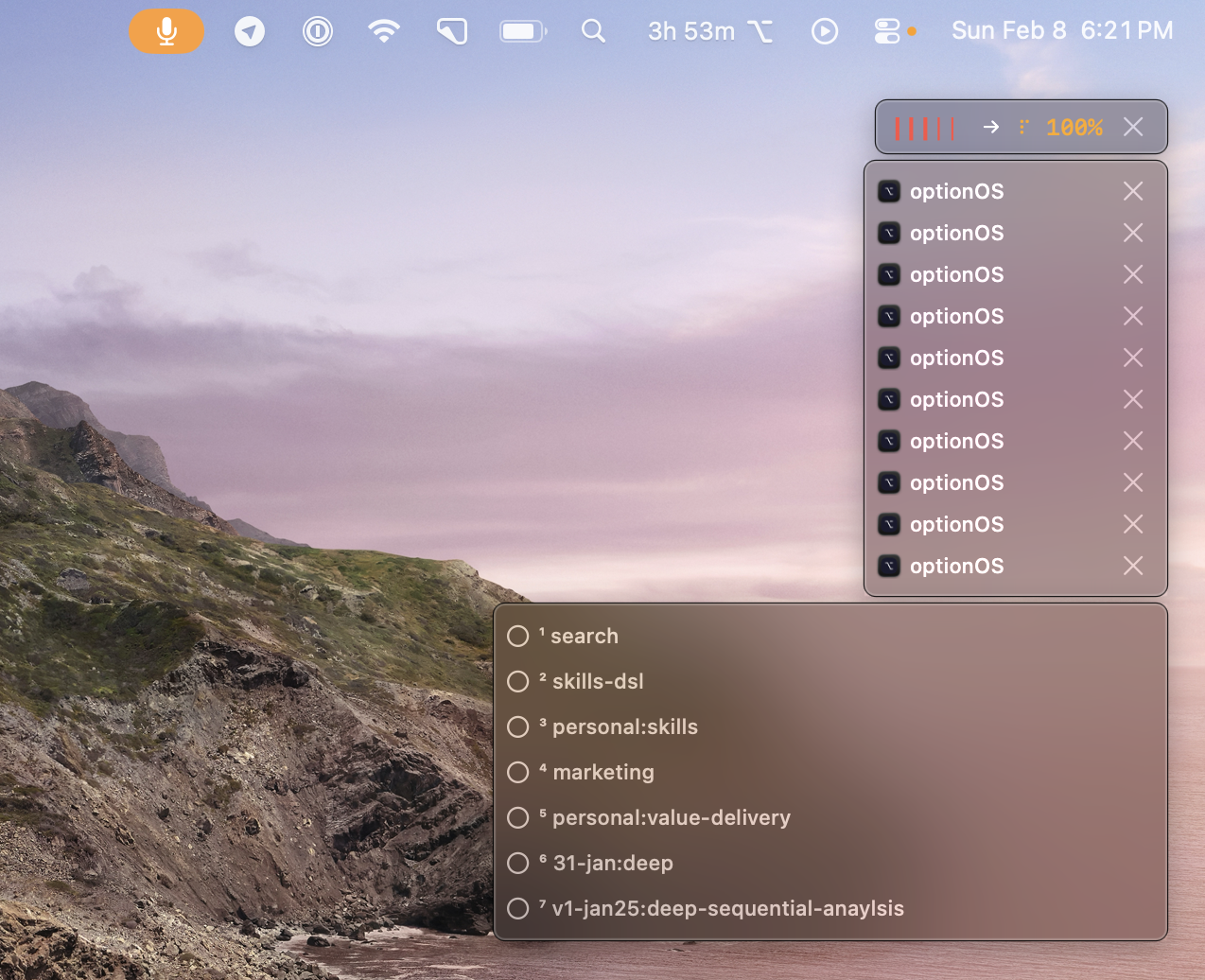
Press ⌥A, start recording. Grab your phone. Screenshot. Copy.
Mac (recording active)
  │
  │  ← "this nav bar is broken"   (voice)
  │  ← ¹ [iPhone SS: layout]      (Universal Clipboard)
  │  ← "fix this"                  (voice)
  │
  ▼
Paste to agent → voice + photo in one package
HUD shows “pasting…” the moment you copy. Instant.
2. iPad → Mac → Agent
Same concept. Draw in Notability. Select. Copy.
Mac (still recording)
  │
  │  ← ² [iPad drawing: Notability]  (Universal Clipboard)
  │  ← "use this as reference"        (voice)
  │
  ▼
Transcript now has: voice + ¹ iPhone SS + ² iPad drawing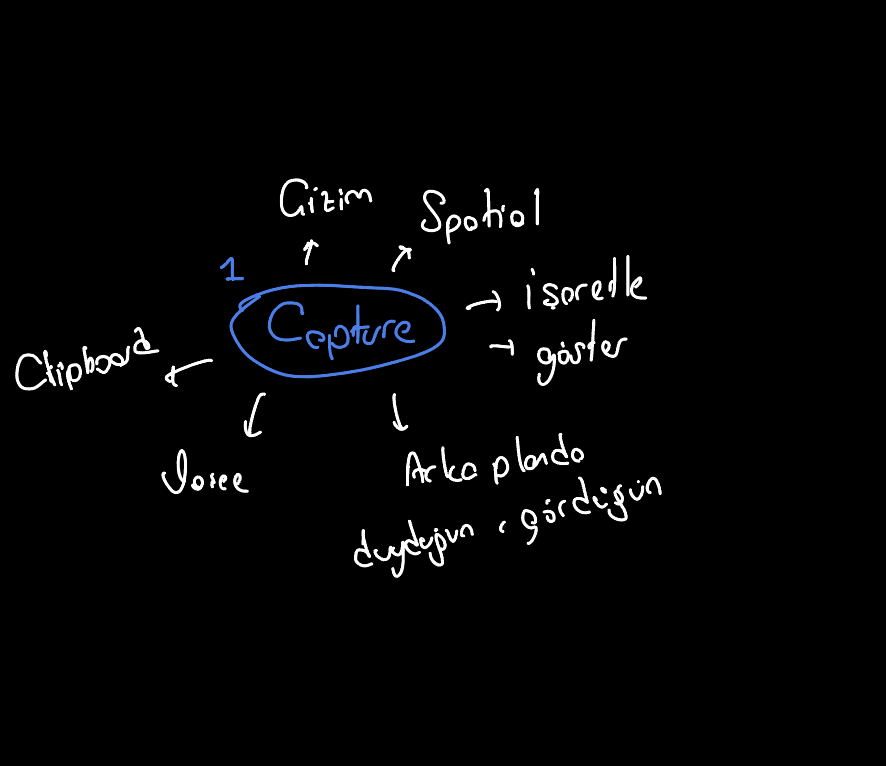
3. Why Does This Work?
Apple Universal Clipboard. Same Apple ID + same Wi-Fi + Bluetooth on = copy on one device, paste on another.
REQUIRED                        NOT REQUIRED
────────                        ────────────
Same Apple ID                   Extra app
Same Wi-Fi                      AirDrop
Bluetooth on                    File transfer
                                Mobile app
OptionOS listens. The moment you copy → it’s inline in your transcript. Zero setup.
4. Full Flow
iPhone/iPad                Mac                     Agent
    │                        │                       │
    ├─ screenshot / draw ───→│                       │
    │  (Universal Clipboard)  │                       │
    │                        ├─ ¹²³ added inline      │
    │                        ├─ voice: "fix it" ────→│
    │                        │                       ├─ saw the photo
    │                        │                       ├─ wrote CSS fix
    │                        │◀── fix delivered ─────┤
No limits. iPhone, iPad, another Mac — any device in the Apple ecosystem.
Use cases:
- Mobile layout broken → phone screenshot → agent fixes CSS
- Product on Trendyol → phone screenshot → agent analyzes
- Notes in Notability → copy → give agent context
- WhatsApp message → copy → agent gets the info
Three Hotkeys
⌥A        speak → copies from any device appear inline
⌘⌥`       clipboard → all copies saved with source
⌥⇧D       skills → find the right doc from 127 by keyword
One app. Fully offline. No subscription.
Watch more:
- 5 Agents, 1 Voice: Complete Workflow Guide — voice-driven agent management
- 2 hour RAW session — uncut development with 5 agents