 OptionOS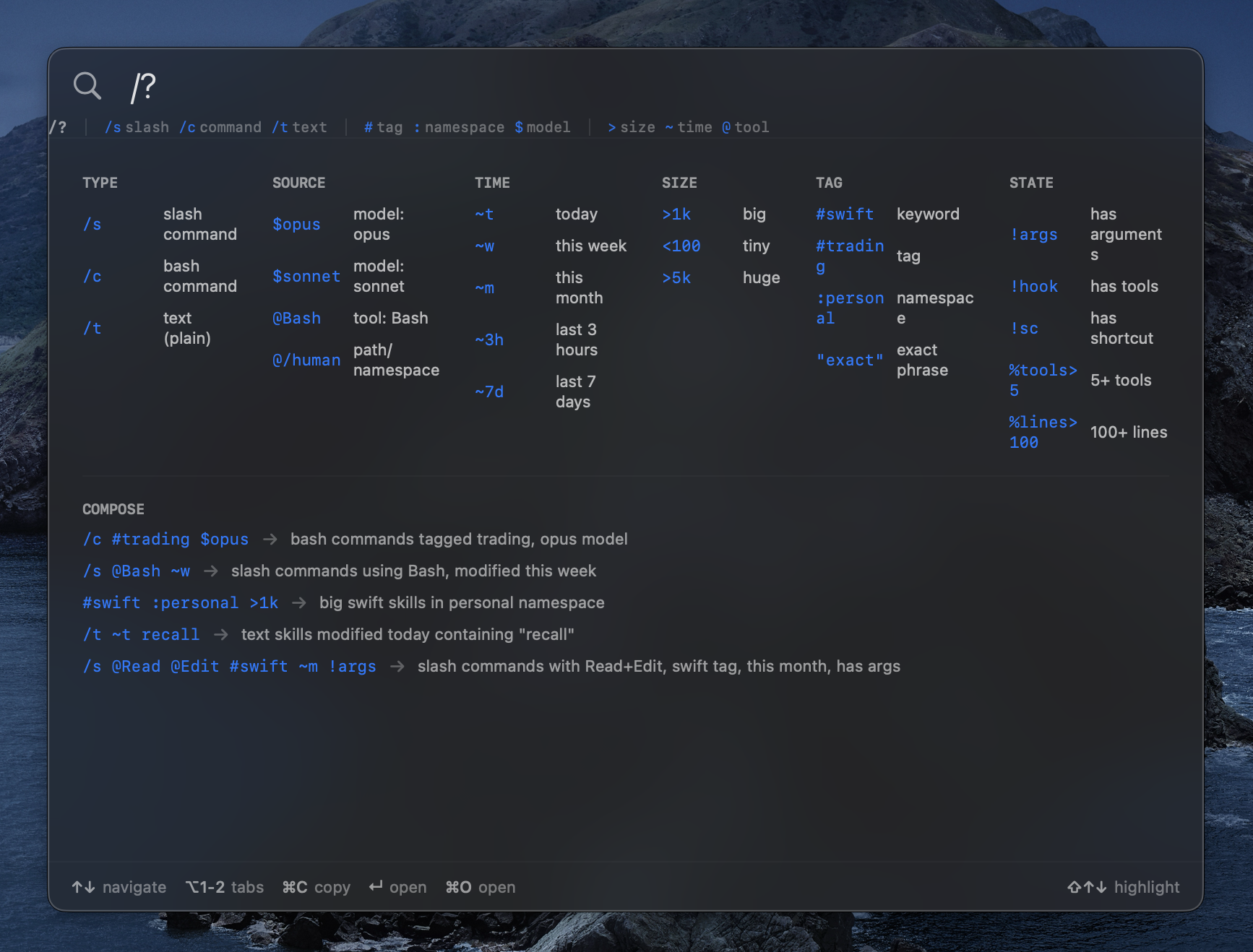
Skills
Scene
You type /architectural-design in Claude Code. It works. But tomorrow you need something else. You don’t remember the keyword. You type /, a list comes up but there are 127 of them. Which one was it? What’s inside? You can’t see. Just names.
Even if you find it — is AI actually reading it? Sometimes it ignores it. Sometimes it looks at the wrong part. If you don’t orchestrate, it doesn’t understand. You need to say “look at this section in this file.” But how can you say that without seeing it?
See it yourself first. Then select. Then give to AI.
”I forget the keyword, I can’t see what’s inside”
Open the Skills panel. 127 documents listed. Each one shows its title, keywords, preview. Look inside, find the right one.
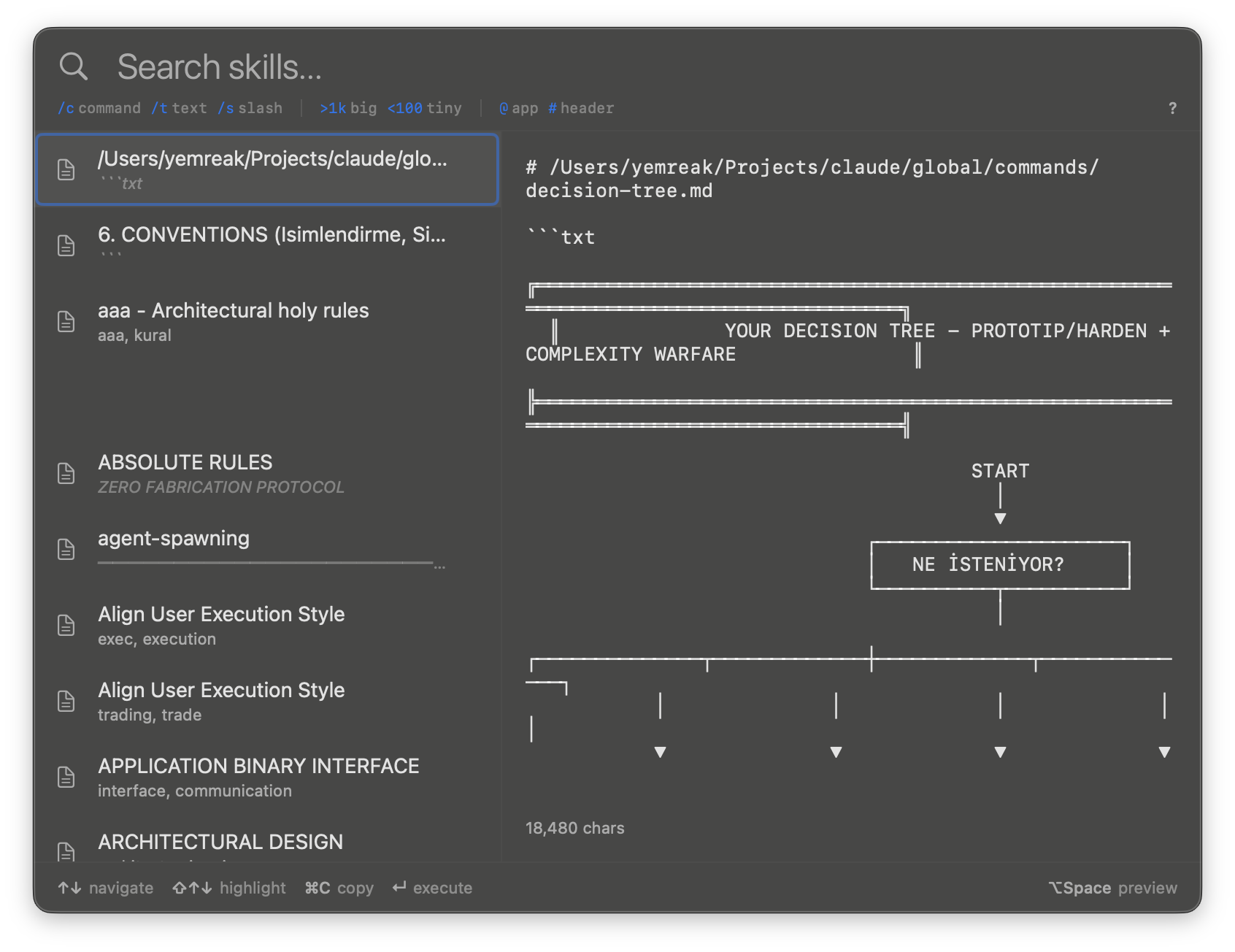
In Claude Code you only see the name. Here you see the contents. That’s the difference.
”I had a note called prime number, I need to find it”
But not in the entire codebase. In your own documents. Skills, commands, custom docs — they live in specific directories.
Just type. By default it searches keywords and descriptions — fast, instant results.
Need to search inside the document body? Add ^ prefix — it scans all content.
Search Language
3 document types:
/s         → slash commands
/c         → bash commands
/t         → text documents
4 search depths — each one goes deeper:
prime        → keyword + description (fast, default)
#prime       → keyword only (exact match)
##design     → markdown headers only (structural)
^exhaustive  → full body text (slow, explicit)
Filter by project, size, time:
@Bash        → using Bash tool
@/path       → from specific path/namespace
>1k          → large documents
~w           → changed this week
Combine them:
/c #trading $opus             → bash commands tagged "trading", opus model
/s @Bash ~w                  → slash commands using Bash, this week
/t ~t recall                 → text skills modified today with "recall"
Your own documents’ search engine.
”I want to copy the right document and give it to AI”
You found it. You see the contents. This is the right section. Copy with ⌘C. Paste into AI.
Or you need multiple skills. Select with Shift, batch copy.
In Claude Code you’d type /slash one by one. Here you see, select, copy, give. You do the orchestration — because you know what it should look at.
”My documents are suggested while I’m talking”
When a keyword comes up in the transcription while talking with Dictation, the related skill is automatically suggested. You said “Xcode” — your Xcode skill comes up. You said “architecture” — your architecture document comes up.
How it works:
YOU (speaking)          DICTATION             SKILLS
────────────            ─────────             ──────
"...Xcode build..."  → keyword: "Xcode"   → Xcode skill suggested
                        keyword: "build"   → build command suggested

"...search engine..." → keyword: "search"  → DSL document suggested
                        keyword: "engine"  → search-engine skill suggested
Every skill has keywords in its frontmatter. Dictation matches your words against those keywords in real-time. You discover while talking — no searching needed.
”Which project has which skills?”
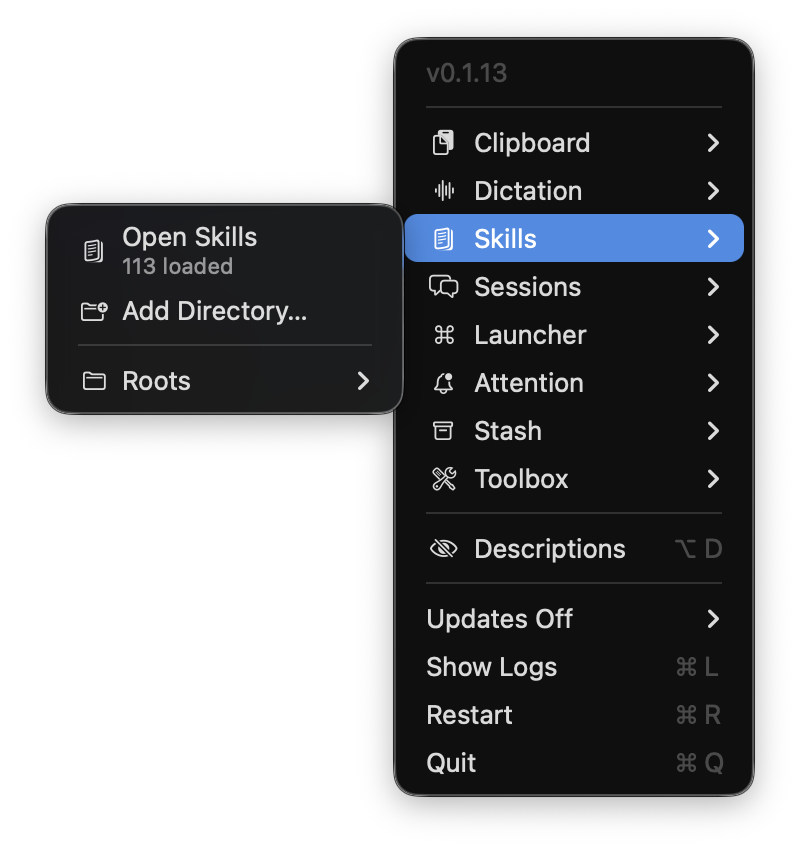
Add a directory. Your projects show up under Roots:
Roots
├── commands    103 skills
└── skills       24 skills
Skills from this project, skills from that project — separately. Add your own directories for custom docs.
Shortcuts
| Shortcut | What It Does |
|---|---|
| ⌥⇧D | Open Skills panel |
↑↓ | Navigate list |
| ⇧↑↓ | Multi-select |
| ⌘C | Copy selected |
↵ | Paste |
| ⌥Space | Preview |
/? | Help — show all search prefixes |
Summary
| Pain | Difference |
|---|---|
| ”I forget the keyword” | Just type — searches keywords + descriptions |
| ”I can’t see what’s inside” | Preview with full content |
| ”Not in the whole codebase, in my own notes” | /s slash commands, /c bash commands, /t text |
| ”I need to search inside documents” | ^text — full body search (explicit) |
| “AI isn’t looking at the right place” | See, select, copy, orchestrate |
| ”Can’t remember while talking” | Keywords matched from dictation in real-time |
| ”Which project has what?” | Roots — filter by project |