 OptionOS
 Skills Search: Real Life Scenarios
127 documents. Commands, skills, custom notes. Here’s how I actually find what I need.
Scenario 1: “Prime Number” — Found by Keyword
I had a theoretical note about prime number architecture. I don’t remember the exact filename. Something about primes.
I open the Skills panel. Type prime.
It searches keywords and descriptions — instant. My prime-number command shows up. I see the preview on the right: the full content.
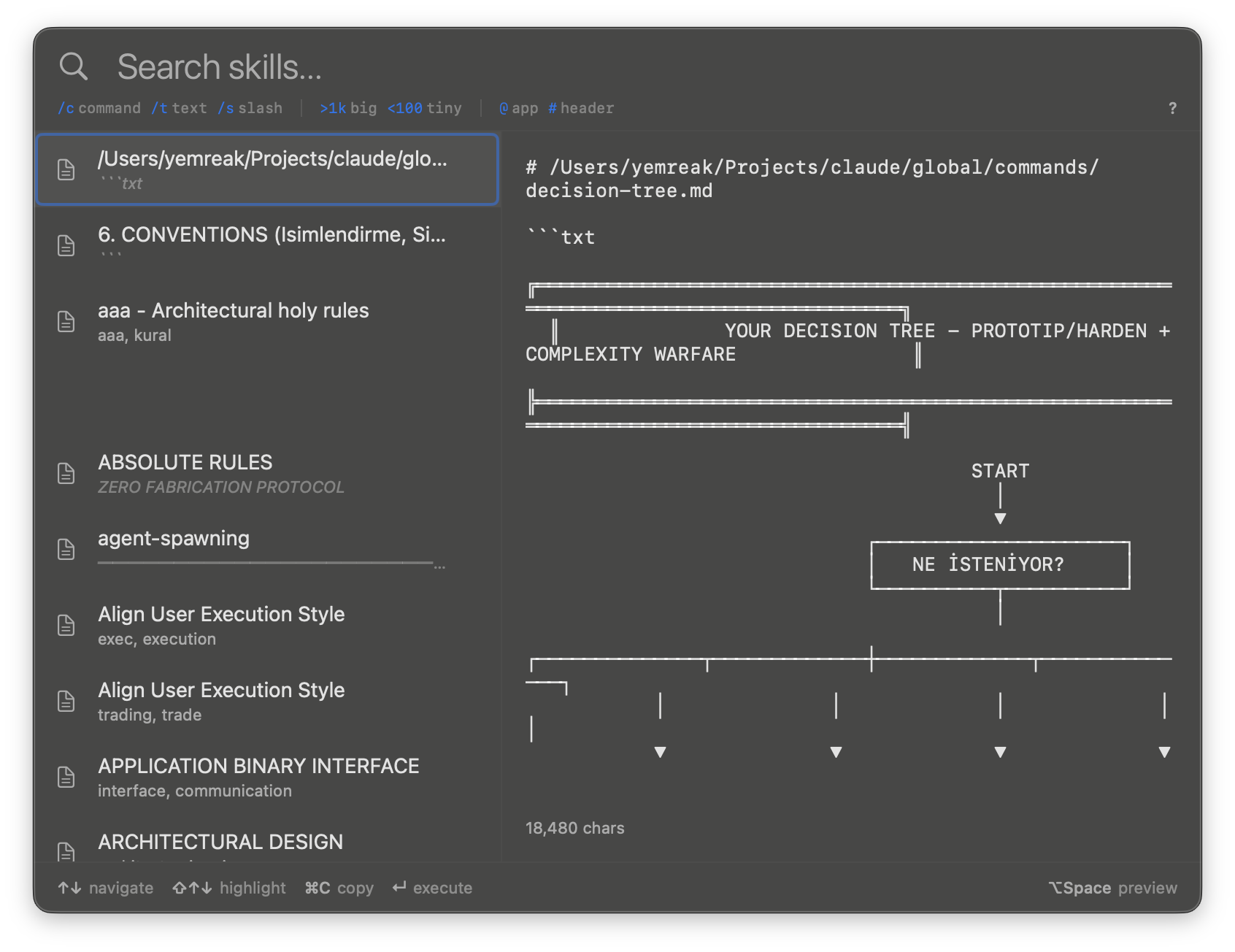
In Claude Code I’d type /prime-number — but I had to know the exact name. Here I just type what I remember. It finds.
Scenario 2: “Design” in Headers — Structural Search
I know there’s a section called “design” somewhere in my documents. Not in the filename, not in the keywords — in a markdown header.
I type ##design.
Only ## headers are searched. Not the body, not the keywords — just the structure. Faster than full text, more precise than keyword.
"prime"       → keywords + descriptions (fast, broad)
"##design"    → headers only (fast, structural)
Two different depths. Same panel.
Scenario 3: “Exhaustive” in Body Text — Deep Search
I know I wrote “exhaustive” somewhere deep inside a document. Not in the title, not in the keywords, not in a header — somewhere in the body text.
I type ^exhaustive.
The ^ prefix triggers a full body scan. It reads through every line of every document. Slower, but finds it.
"prime"         → keyword + description  (instant)
"##design"      → headers only           (instant)
"^exhaustive"   → full body text         (slower, thorough)
Three depths. You choose based on what you know:
- Know the keyword? Just type.
- Know the section title? Use
##. - Know it’s buried somewhere? Use
^.
Scenario 4: optionOS Trading Commands — Triple Filter
I need trading-related commands from my optionOS project specifically. Not skills, not docs — commands. Not from other projects — from optionOS.
I type /c #trading $opus.
/c          → bash commands only (not slash commands, not text)
#trading    → with "trading" keyword
$opus       → opus model only
Three filters, one line. One result.
Scenario 5: I Was Talking — “Architecture” Appeared
I’m recording with Dictation. Talking about a new feature. I say “…we need to follow the architectural design pattern…”
A popup appears at the bottom. My architectural-design command. I didn’t search for it.
MY SPEECH                     WHAT HAPPENED
─────────                     ─────────────
"...architectural design..."  → keyword "architectural" matched
                              → keyword "design" matched
                              → architectural-design.md suggested
Every document has keywords in its frontmatter. Dictation extracts words from my speech. When they match — the document surfaces.
I click it. Preview opens. I see the content, find the right section, copy it. Paste into AI. AI now has the exact context it needs.
I didn’t remember the filename. I didn’t open the Skills panel. I just talked. The right document came to me.
Scenario 6: 3 Skills, Batch Copy, One AI Session
I’m about to give AI a complex brief. It needs:
- My architecture principles
- My Swift patterns document
- My database design notes
I open the Skills panel. Find the first one — Shift+click. Find the second — Shift+click. Find the third — Shift+click.
Three documents selected. Total context visible.
⌘C. Paste into AI. All three, in order, in one action.
In Claude Code I’d type /architecture, wait, type /swift-patterns, wait, type /database-design, wait. Three separate injections. No way to see them together before giving to AI.
Here: see all three previews, verify they’re the right ones, copy once, paste once. You do the orchestration.
Search Language — Complete Reference
3 document types:
/s              → slash commands
/c              → bash commands
/t              → text documents
4 search depths — each goes deeper:
prime           → keyword + description (fast, default)
#prime          → keyword only (exact match in frontmatter.keywords)
##design        → markdown headers only (structural)
^exhaustive     → full body text (slow, explicit — use when others fail)
Filters:
@Bash           → using Bash tool
@/path          → from specific path/namespace
>1k             → large documents (1000+ characters)
<500            → small documents
~w              → changed this week
Combine anything:
/c #trading $opus             → bash commands tagged "trading", opus model
/s @Bash ~w                  → slash commands using Bash, this week
#swift :personal >1k         → big swift skills in personal namespace
/t ~t recall                 → text skills modified today with "recall"