 OptionOS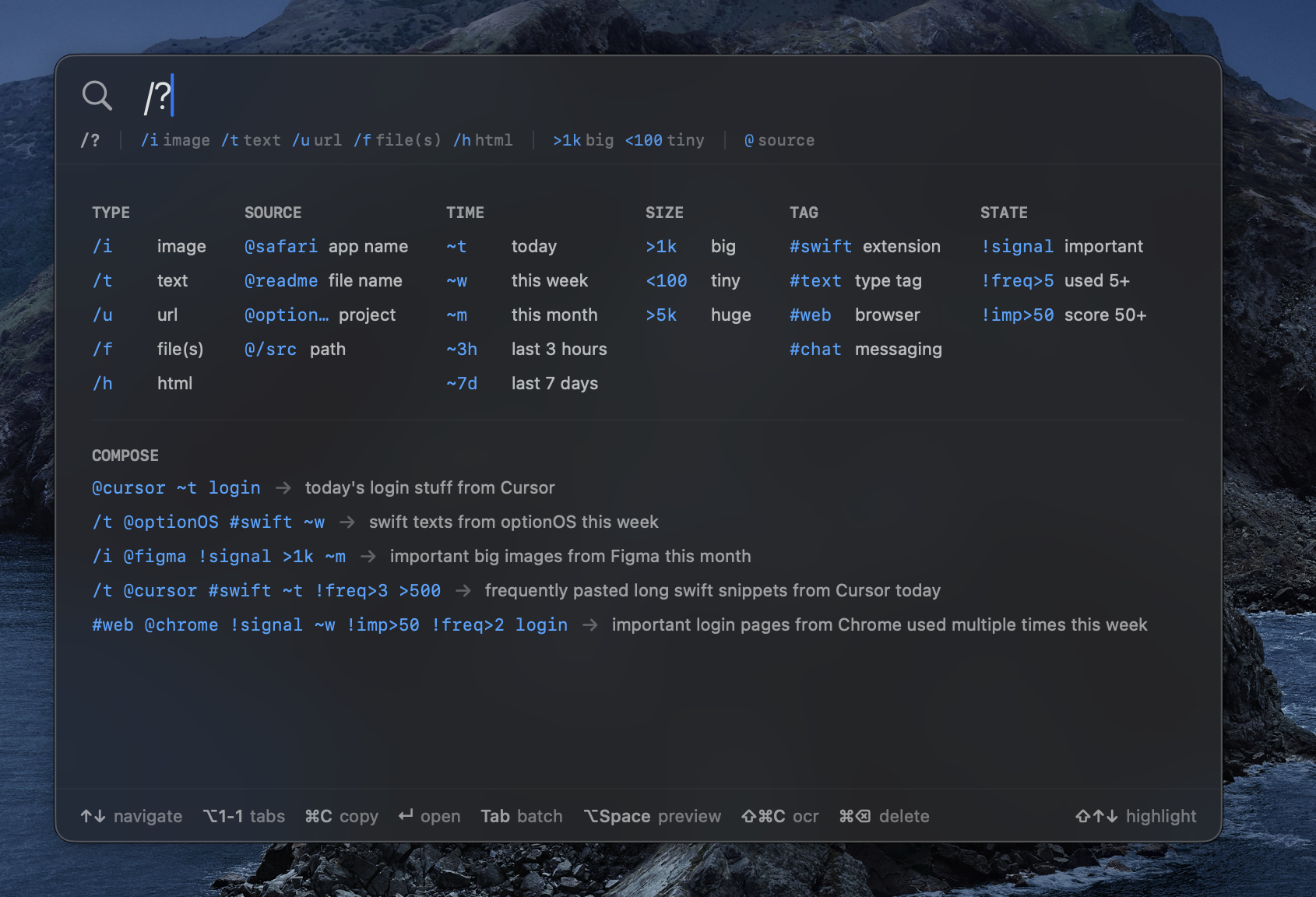
Smart Clipboard
Scene
You copy code. You see something on YouTube, you copy it. You find a nice design, you copy the link. An idea pops into your head, you need to write it somewhere. Blog, screenshot, file path, error message — everything gets copied.
Then where do you put it? You have 700 files. There are folders, categories. Every time you decide “where should I write this?” You spend more time deciding where to put the note than actually taking it. You get annoyed. You don’t get back to the actual work.
You write everything in one file. Then you can’t find it in that one file.
Clipboard already exists. You’re already copying. You’re already pasting. The only thing missing: being able to go back and find it.
”Where should I write this? I’m sick of deciding”
Don’t write anywhere. Copy. It’s saved automatically.
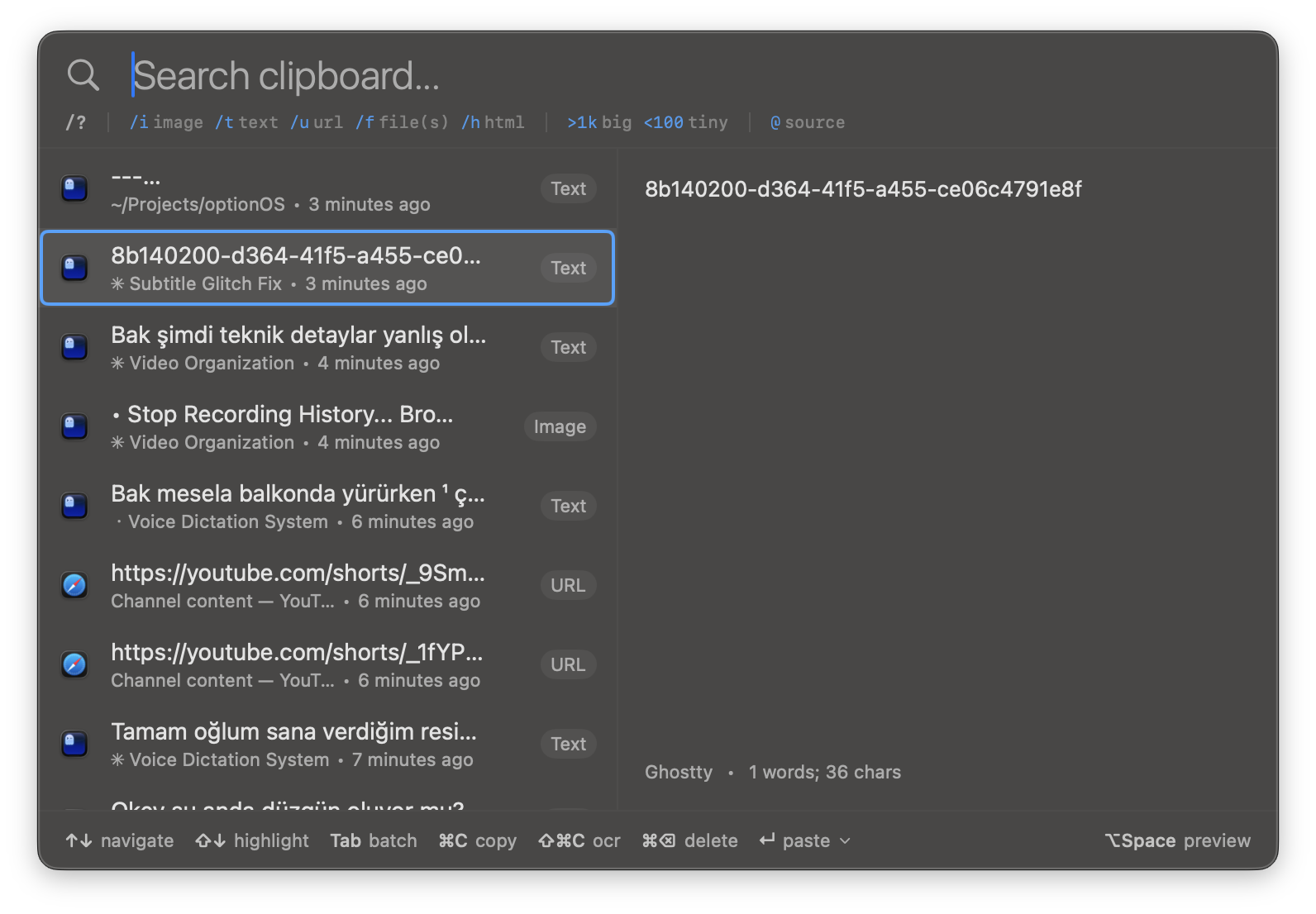
Hit ⌘⌥`. Everything you’ve copied is in the list. When you copied it, which app you copied from, what you copied — all visible. No decisions, no folders, no files. Copy, move on.
”I copied something from Chrome but which one was it?”
Type @chrome. Only things copied from Chrome show up.
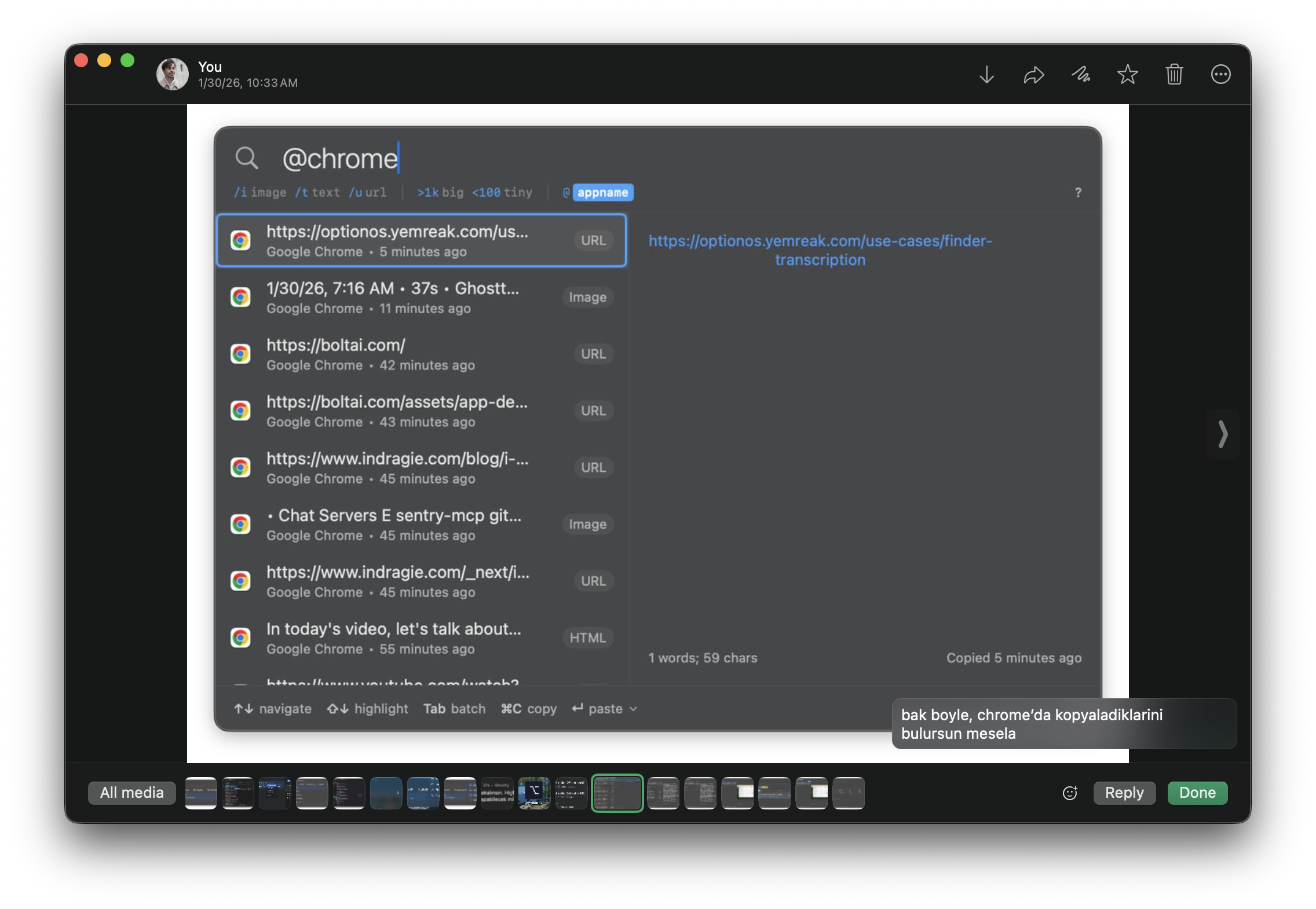
Mac already knows what you copied from where. From Chrome, from Terminal, from VSCode. Just ask.
”I copied an image, there was some text in it”
Type @safari /i yemreak. Finds images copied from Safari that contain “yemreak”. It reads the text inside the image.
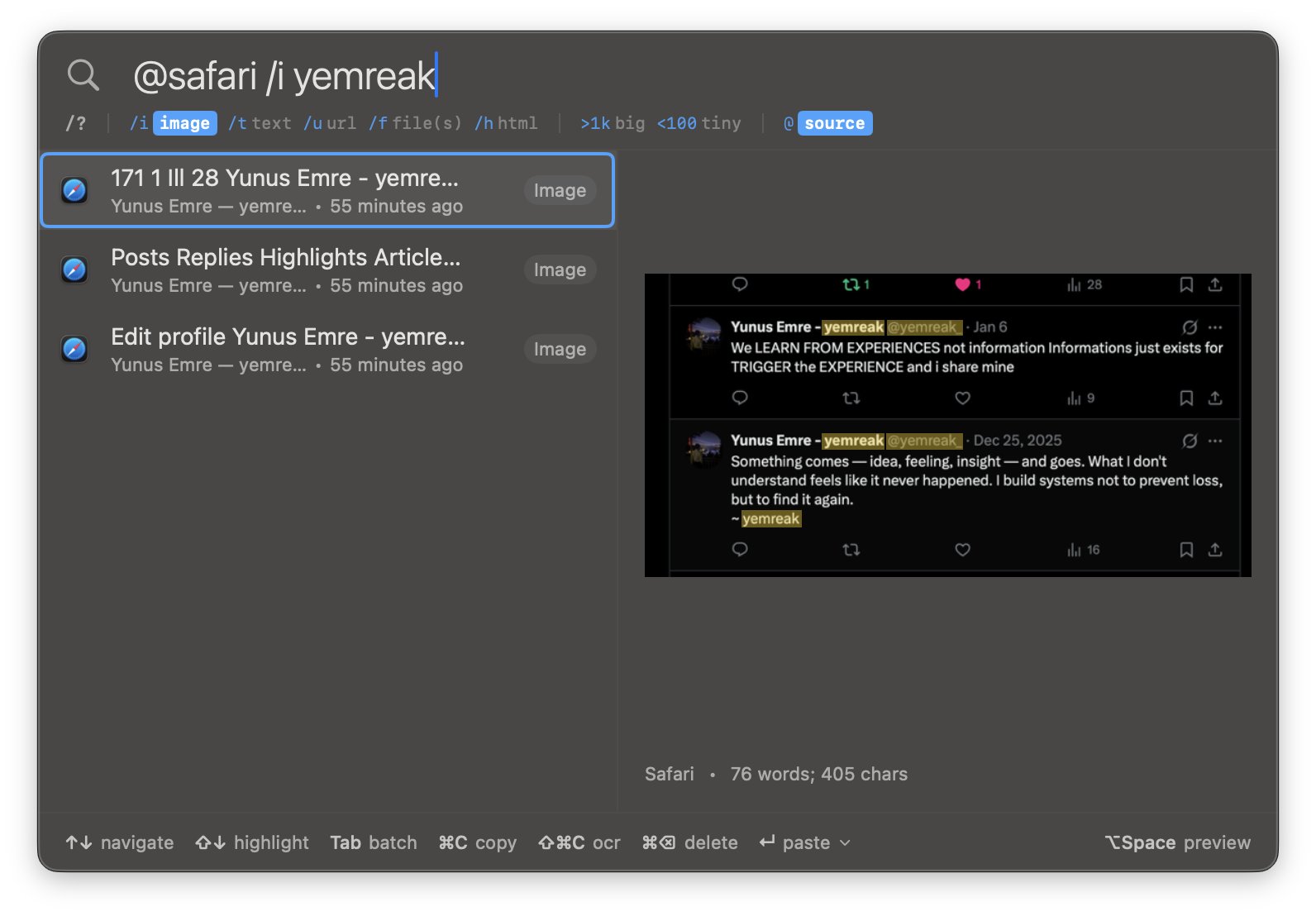
Reading code from a screenshot, finding text in an image — no manual typing.
”Is there a search language? Something like Google?”
Type /?. All filters show up.
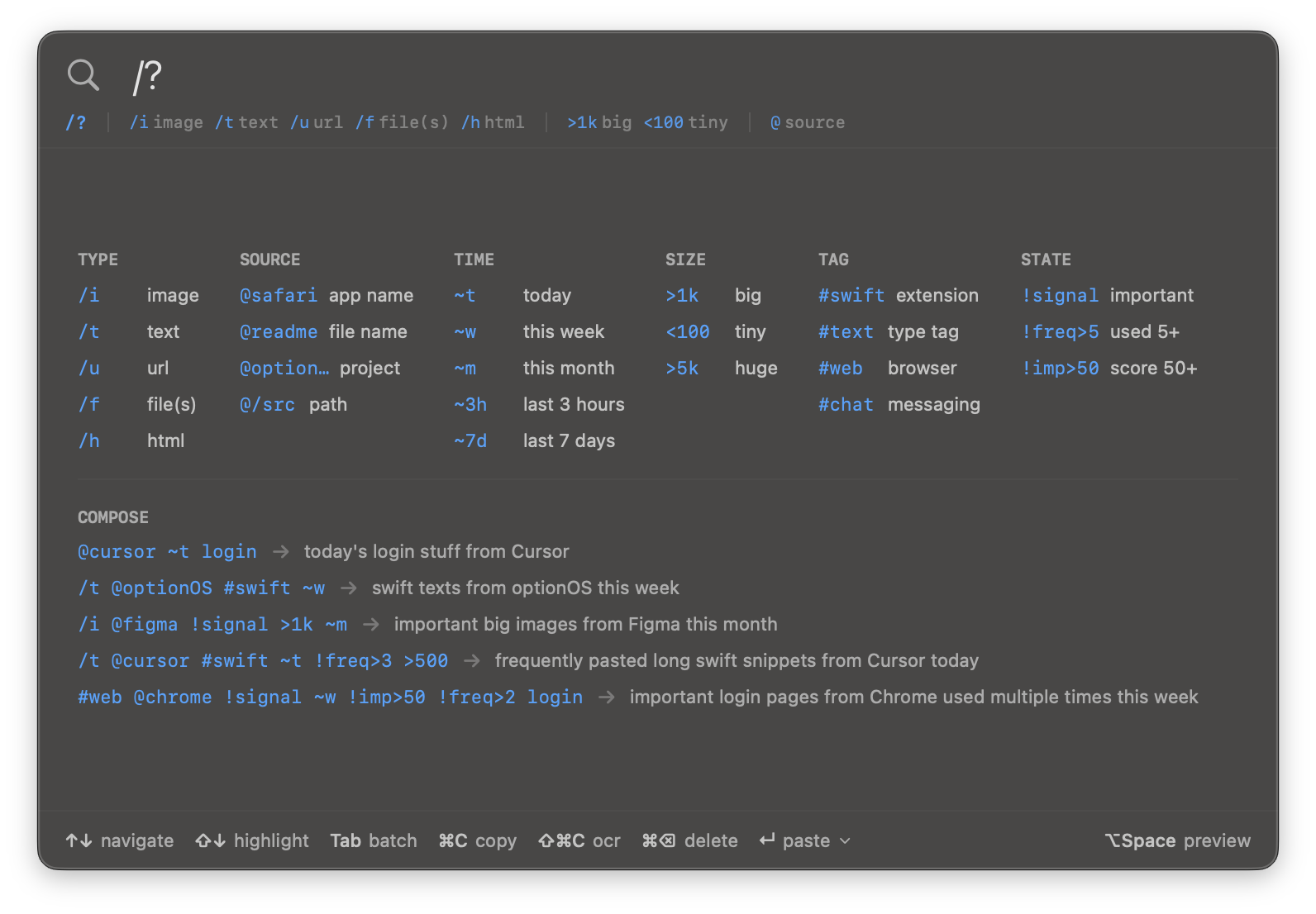
Combine them:
@cursor ~t login        → login content copied from Cursor today
/t @optionOS #swift ~w  → swift texts from optionOS this week
/i @figma !signal >1k   → large important images from Figma
Your own computer’s search engine.
”I copied 5-10 things, I want to paste them all at once”
Sometimes you don’t talk. You quietly collect. You copy 5 things from 5 places. Then you want to give them all in order.
Select with Shift. Assign numbers. Enter.
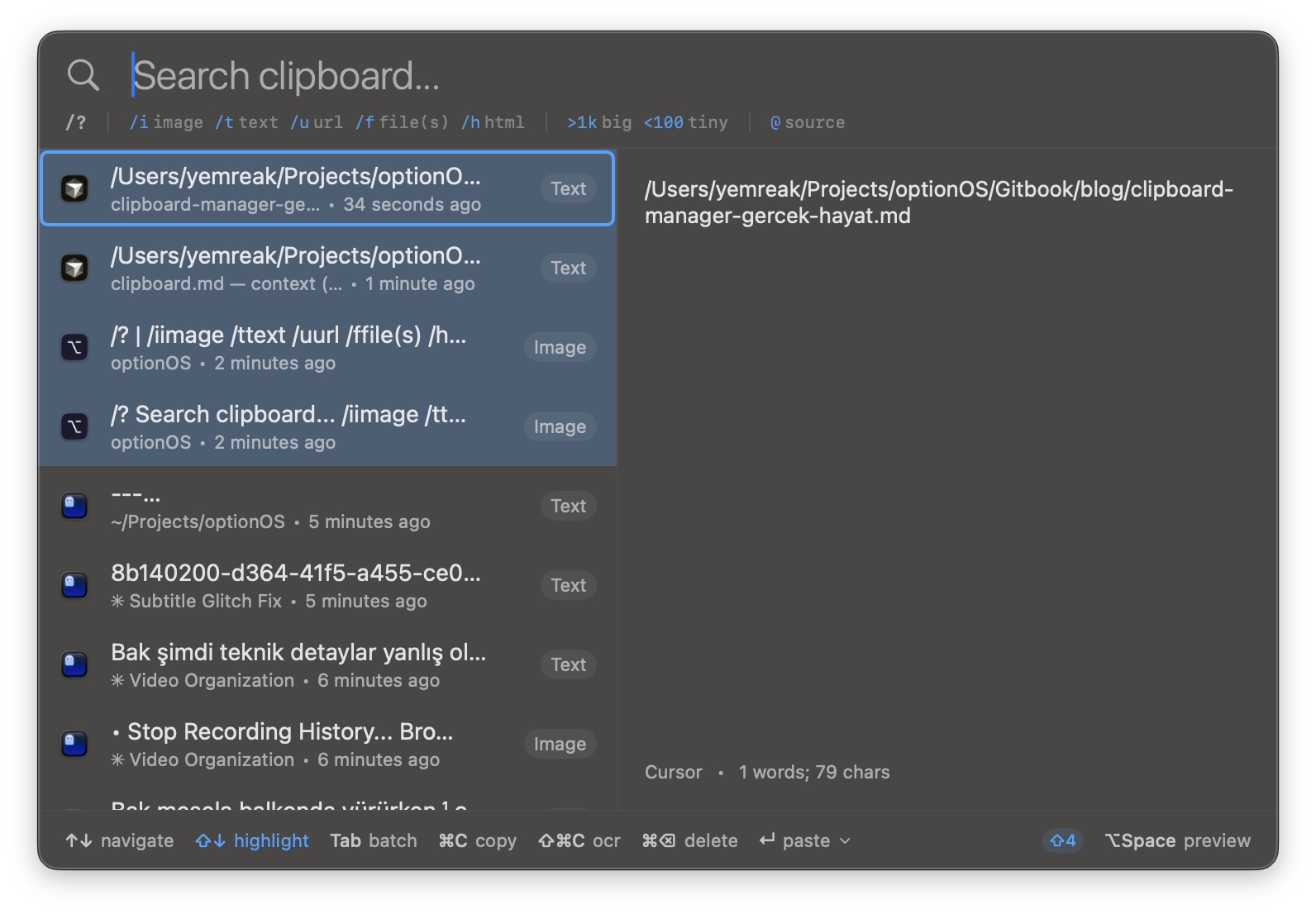
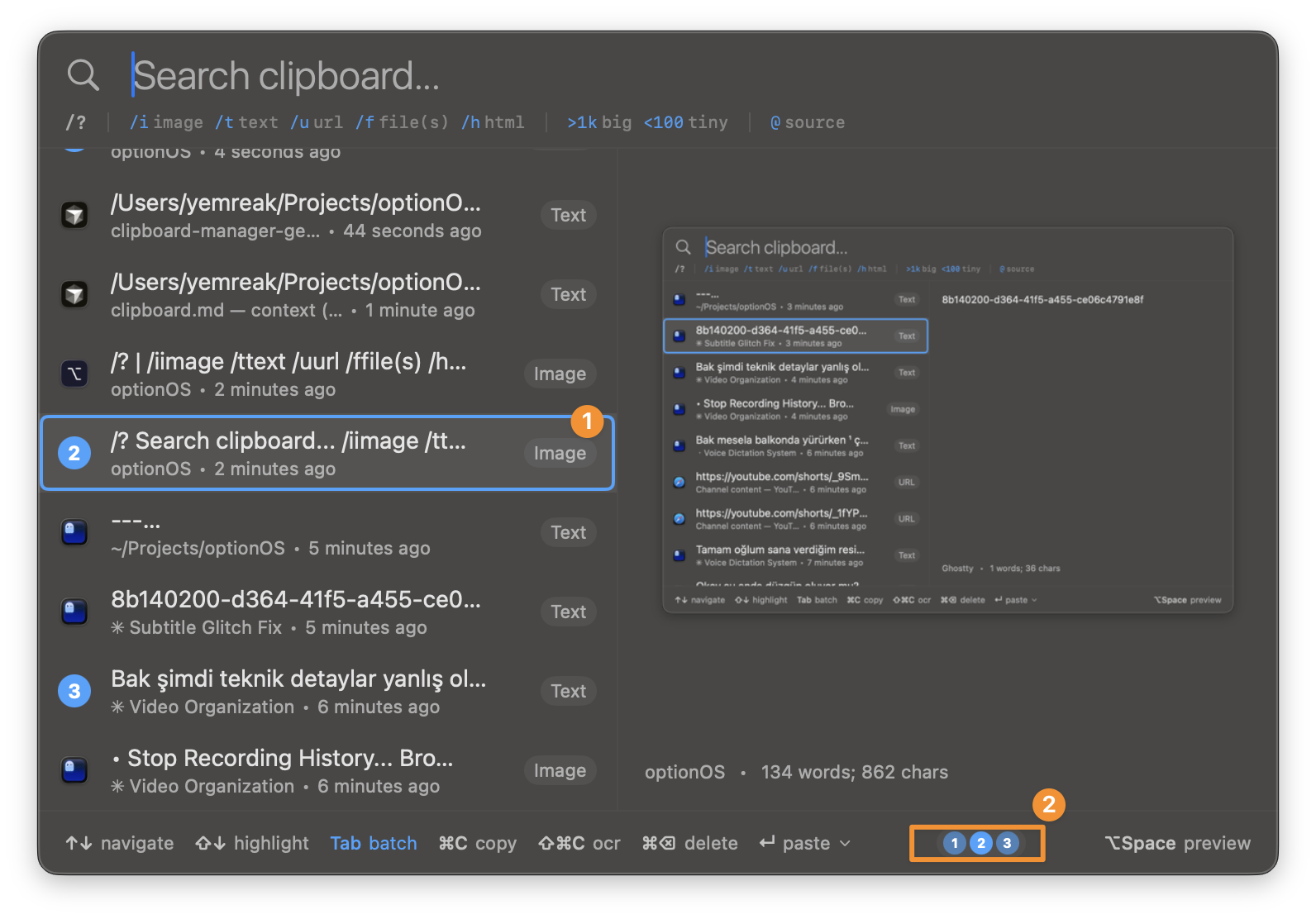
No pasting one by one. You set the order, give them all at once.
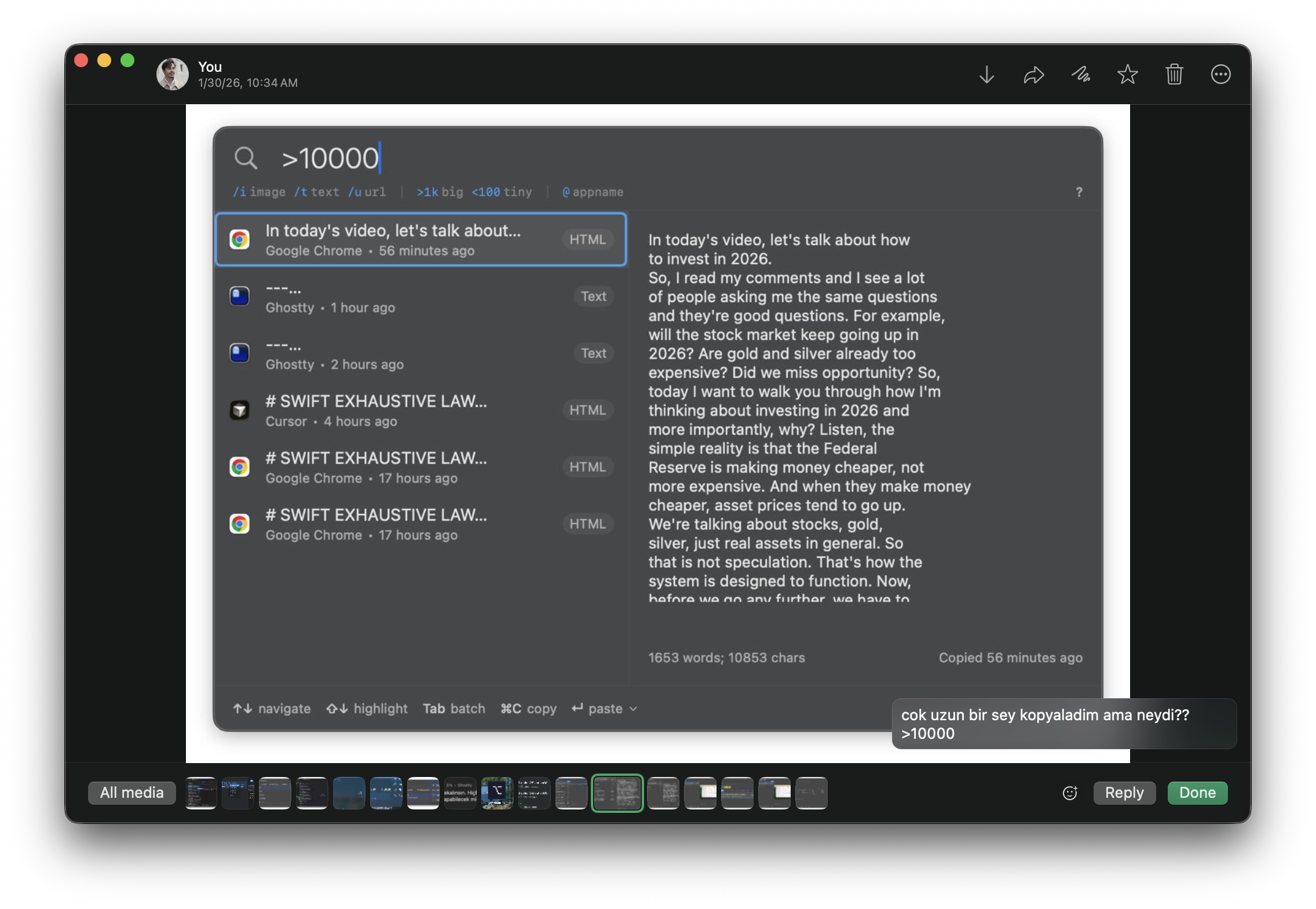
”I copied something really long, what was it?”
Type >10000. Content longer than 10,000 characters shows up. YouTube transcript, blog post, long code block — which one was it? You see the beginning in the preview.
”Code is content too”
Clipboard isn’t just text. Code is content. An image is content. A link is content. A file path is content. All in the same place, found with the same search language.
/t @cursor #swift   → Swift code from Cursor
/f @finder          → File paths copied from Finder
/u @chrome          → URLs copied from Chrome
/h @safari          → HTML copied from Safari
”First I see it myself, the rest follows”
AI integration is coming. But the key point is this: find it first, see it yourself first. If you can’t find it, you can’t give it to AI either.
Clipboard = your personal search engine. Every copy is a record. Every record is searchable. Find it yourself first, then give it to AI.
Shortcuts
| Shortcut | What It Does |
|---|---|
| ⌘⌥` | Open/close panel |
↑↓ | Navigate list |
| ⇧↑↓ | Multi-select |
Tab | Switch to batch mode |
| ⌘C | Copy selected |
↵ | Paste |
| ⌥Space | Preview |
| ⇧⌘C | OCR |
/? | Help |
Summary
| Pain | Difference |
|---|---|
| ”Where should I write this?” | Nowhere. Copy, it’s saved automatically |
| ”I copied something from Chrome” | Type @chrome, find it |
| ”I need the text in an image” | Search inside images with OCR |
| ”I copied 5 things, I want them all” | Select with Shift, paste in order |
| ”Lost among 700 files” | One place, search language, filter |
| ”It was something really long” | Type >10000, find large content |
| ”Code is a note, images are notes” | All in the same place, same search |